HP Omen Max 45L Desktop PC Review: Cool, Quiet, Brutally Fast


This isn't the first HP Omen Max gaming system we've reviewed; the most recent was the HP Omen Max 16 gaming laptop. We loved that machine, and effusively praised it in our review. We like this machine quite a lot, too, but just as with the laptop, there are some caveats. HP ships the Omen Max 45L desktop with the same software configuration as the Omen Max 16 laptop, so we're not going to spend a whole page retreading the same ground, but I wanted to talk about the latest version of the Omen Gaming Hub.
To be clear, if you haven't read that review, you should go look at it. All of the same software criticisms apply, including the fact that the machine comes with ten different HP apps pre-installed as well as the fact that there are no less than three different "main" HP apps on this machine. That's right; HP Support Assistant is still here, as is the myHP app. You don't have much reason to dip into those unless you're actually talking to HP support, but the Omen Gaming Hub app is another story.
What Is The HP Omen Gaming Hub All About?

As before, this is the very first screen you see when you open Omen Gaming Hub. We do want to praise HP for being up front about this data-mining. We would prefer that it were the only data-mining going on, but it's hard to fault a company for giving users the option to opt out up front.

The next thing you'll see, after a lengthy loading screen, is this message. Not just restarting the application, but the whole PC. Why? Presumably because Omen Gaming Hub has installed some system-level driver that it needs for monitoring and modifying system configurations.

Before you can even restart your PC though, this pops up in your notifications bar. This came up before we even got into the application proper. It is just one of many advertisements you will endure when using Omen Gaming Hub.

Then, once you reboot and get into the application, you'll get this message. I haven't even done anything. Why do I need to reboot twice? What even happened?

Then, finally, once you get into the application, the first thing that will pop up for the app's own notifications area is this message, which seems to imply that you get 5321 free games with your new PC. That sounds great! Unfortunately, you do not actually get 5321 free games. You don't even get 5321 free-to-play games. You do get a free 3-month subscription to Game Pass, though. That and the games available with a free GeForce Now subscriptions are what make up the 5321 games.

Here's what the app actually looks like. It's not super different from what it was on the Omen Max laptop, although the left side bar's been shuffled around a bit and there's a permanent banner ad down in the bottom left corner now. If you know how online advertising works, this thing is harvesting more personal information about you than the app itself would likely have grabbed anyway, and there's no apparent way to turn it off.

The Performance tab is where you'll likely spend most of your time. It allows you to choose between performance profiles, play with Omen AI, or make use of the odd Booster and Cleaner functions. We explored Booster and Cleaner extensively in the Omen Max 16 laptop review, so we won't retread that ground; head over there if you want to read about them.
The short version is that Booster makes an attempt to improve game performance and block interruptions by disabling unnecessary background services, while Cleaner lets you remove temporary and cache files as well as junk applications from your system. Both are fairly basic and straightforward, but they could be useful if you don't want to install third-party software for those functions.

Meanwhile, Omen AI gets its own dedicated button in the UI. This is basically a way to slap AI branding on what is essentially the same thing as NVIDIA's "game optimization" feature in its own app. We didn't test Omen AI, but we don't like it when NVIDIA changes our game settings, so we probably won't like it when HP does, either. It could be useful for non-technical users, though.

The shop is just a permanent browser tab that goes to the Fanatical website. Fanatical is pretty great. If you haven't used it, they're a third-party game store that sells completely legitimate game keys for Steam and GoG. This isn't some shady "key trading" site; Fanatical is fully partnered with the storefronts it works with. You can think of Green Man Gaming or the Humble Store; it's like those. Of course, it's not clear why you would want to buy your games through the Omen Gaming Hub instead of through a normal browser, but the function is fine.

The "My Games" section is intended to be a roll-up library for all of your game stores. In practice, it seems to largely be an advertisement for GeForce NOW, which is quizzical to say the least. Most people won't pay nigh-on $7,000 for a gaming PC to play cloud games. The idea of a launcher that has all your games from every service in one place isn't particularly offensive, but Microsoft already has its Xbox app doing this now if you really want this function.

HP says the Deals page has "dozens of deals, curated for you every week!" but in practice it seems to mostly be advertisements for sales at Steam and GOG. Again, this isn't a bad thing, and if there are more HP-specific deals like the Hero Wars promotion we got a system notification for, then it might be pretty sweet. It doesn't seem like HP's users really need yet another place to shop for games, though. In our time with the system, that's the only thing we saw in a brief scan of the "Deals" page that seemed to be HP-exclusive.

Finally, the system controls; we're actually skipping over most of them because, again, we covered them last time. The advanced performance tuning options are a little different this time around, though, so we wanted to go over them briefly. On the Advanced Performance Tuning page, as long as you're in "Extreme" mode, you can enable AMD's Precision Boost Overdrive feature to tweak your CPU's performance. There are few controls here; while having these functions exposed this way is convenient, it would be nicer if HP would expose the rest of the PBO controls, or alternatively, just put a button that opens Ryzen Master.
The GPU and memory controls are similarly barebones. In the former case, that's less HP's fault and more NVIDIA's; the GeForce guys don't give users much rope to hang themselves with anymore, which is a double-edged sword, as it also means that there isn't much meaningful tweaking to do nowadays. Meanwhile, the Memory controls just let you enable "Turbo" mode, but all this does is raise the memory clock from the stock 5600 MT/s up to 6000 MT/s with no changes in timings. 5600 CL46 isn't fast, but 6000 CL46 isn't exactly screaming, either, especially because the UCLK divider is still enabled by default. We'll talk about this more in the Overclocking section on the next page.

On the lighting page, you can customize the lighting effects of each fan individually, and you can also customize the lighting of the Kingston Fury Beast memory by clicking the little button at he top to change to the memory zone, even though the icon looks like an SD card. The controls here are quite normal, although you can also control the lighting through Windows' Dynamic Lighting settings. There's a more full-featured lighting customization app called Light Studio that's a separate download if you really want to fiddle with the RGB LEDs.

Finally, the LCD Display page allows you to customize the image displayed on the CPU waterblock. By default it simply displays an Omen logo, but you can have it show all kinds of information, including CPU and GPU clocks and utilizations, temperatures, storage space, or a static image, if you prefer. Unlike a lot of third-party liquid coolers with screens, there doesn't appear to be any way to set a custom image or video, though, so you're stuck with the ones HP offers. Fortunately HP offers some pretty decent presets.
There are a few other functions of HP's Omen Gaming Hub that we didn't cover yet; the Gallery is a basic Wallpaper Engine, the Cam & Voice enhancer lets you apply noise canceling effects to your mic and remove or replace the background in your camera feed, and the Key Assignments option lets you mess with your keyboard layout.
The thing is, all of these options are emblematic of the core problem with Omen Gaming Hub, which is simply that while it has a ton of functions, many of the things it does are similar or inferior versions of built-in Windows features or third-party software that PC gamers will likely already be familiar with. HP seems to envision the app as a sort of one-stop-shop for gaming functions on its Omen PCs, but PC gamers have been using dedicated apps for most of this stuff for decades, and that's not likely to change now.
Combined with the ever-present advertising, our opinion of the app is mostly apathetic, and along with the extraneous myHP app and the bundled offers (including the ever-present McAfee trial), the software situation on the Omen Max is less than ideal, on what is otherwise a fantastic gaming system.
Synthetic And System Benchmarks On The HP Omen Max 45L Gaming Desktop

We'll start off by checking out storage performance with ATTO. The ATTO disk benchmark is a fairly quick and simple test which measures read/write bandwidth and IOPS across a range of different data sizes with a configurable queue depth. While we don't typically compare these results across multiple machines, it's useful to gauge whether a particular system's storage subsystem is up to snuff.

The Omen Max 45L that we're testing includes two identical SSDs, although we tested the system disk just to ensure parity with the other machines we've tested. Performance is right where we would expect for the Sandisk SN5000S, which is a mid-range PCIe 4.0 NVMe SSD without a DRAM cache. There's really not much to say here, so let's just move on to Speedometer.
HP OMEN Max 45L Browserbench Speedometer Benchmark
We use BrowserBench.org's Speedometer test to take a holistic look at web application performance. This test automatically loads and runs a variety of sample web apps using the most popular web development frameworks around, including React, Angular, Ember.js, and even plain-Jane JavaScript. All tests were performed using the latest version of Chrome.
Not a stellar result for the Omen Max, although 43.5 is still quite high performance in this test. Browserbench can be weirdly sensitive to a number of factors, like whether it's run on dGPU or iGPU, and memory performance, so this result isn't really that surprising.
Blender Rendering On The HP OMEN Max 45L
Blender is a free and open source 3D creation suite that can handle everything from modeling, rigging, and animation to simulation, rendering, compositing and motion tracking. It has a purpose-built benchmarking tool that will track the time it takes to complete rendering a particular model (or models). We used the CPU-focused benchmark with the three models that Blender presents as typical benchmark scenes.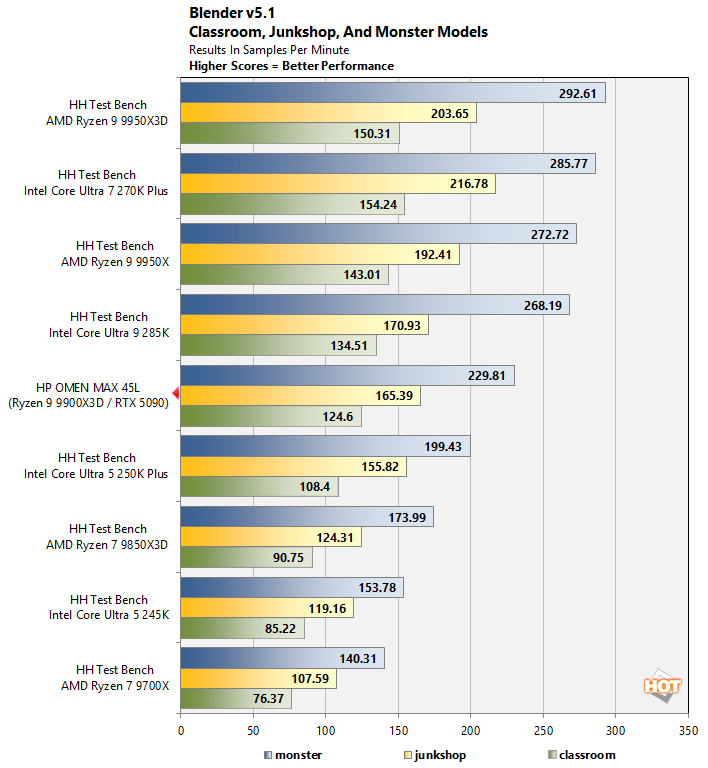
No surprises here; our twelve-core CPU comes in ahead of eight-core chips and behind 16-core chips. If anything, the real shocker is how badly the Core Ultra 7 270K Plus beats the Core Ultra 9 285K, but we already saw that in our review of the Core Ultra 200 Plus CPUs.
Cinebench 2026 On The HP OMEN Max 45L
Cinebench 2026 is a 3D rendering performance test based on Maxon's Cinema 4D rendering and animation tool suite, which is used by animation houses the world over. It's very demanding of system processor resources and can utilize any number of threads, which makes it an excellent gauge of computational throughput. This is a multi-threaded, multi-processor aware benchmark that renders a scene and tracks the length of the entire process. The rate at which each test system was able to render the entire scene is represented in the graphs below.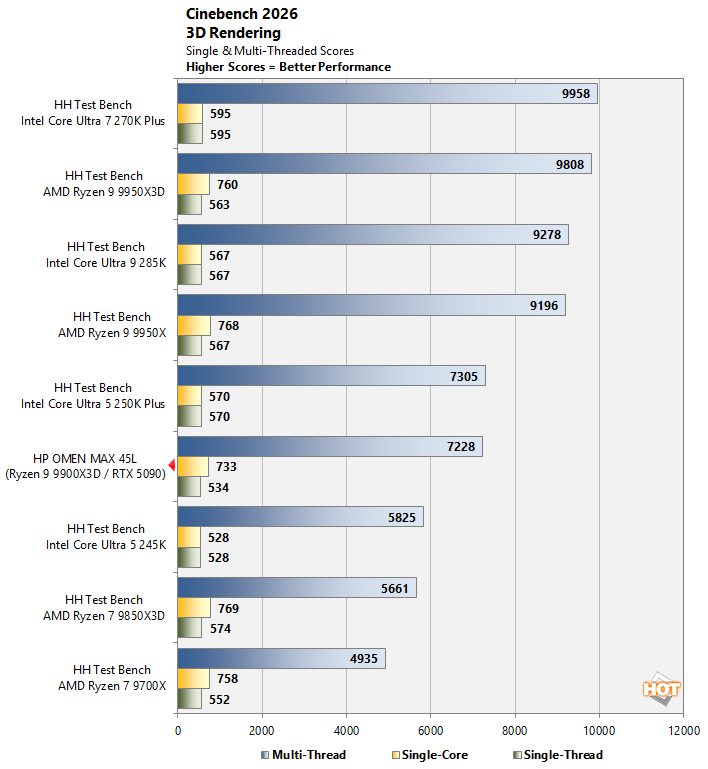
The story is much the same here as in Blender, with the Omen Max 45L's CPU performing exactly as expected. There's not much ot say other than that if you need to do some 3D rendering on your gaming PC, the Omen Max will get it done.
Geekbench 6.5 Total Sytem Benchmark
The GeekBench CPU tests stress only the processor cores in a system (so not the graphics card or GPU), with both single and multi-threaded workloads. The tests are comprised of encryption processing, image compression, HTML5 parsing, physics calculations, and many other kinds of general purpose compute processing workloads.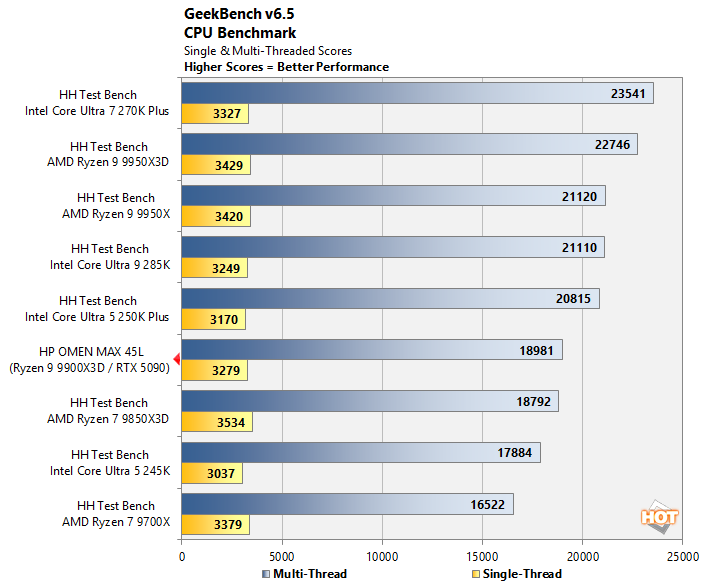
Geekbench really favors systems with strong memory performance, and so we expect that's part of what's going on here. The Ryzen 9 9900X also has just six cores on each of its two CCDs, and so inter-CCD communication may be playing a part here, too. Either way, this result is acceptable.
HP OMEN Max 45L In Geekbench AI
The Geekbench AI benchmark provides a straightforward look at how well a device handles a variety of AI-assisted tasks. This quick and easy test gives you a numerical snapshot of a CPU, GPU, or NPU's ability to power through real-world machine learning workloads, factoring in both speed and accuracy. The higher the score, the better the device's AI chops, whether it's image recognition, object detection, or natural language processing.Results are presented for three levels of numerical precision: single precision or FP32, half precision or FP16, and quantized or INT8. All results that the benchmark provides are geomean scores from multiple runs of each test workload.
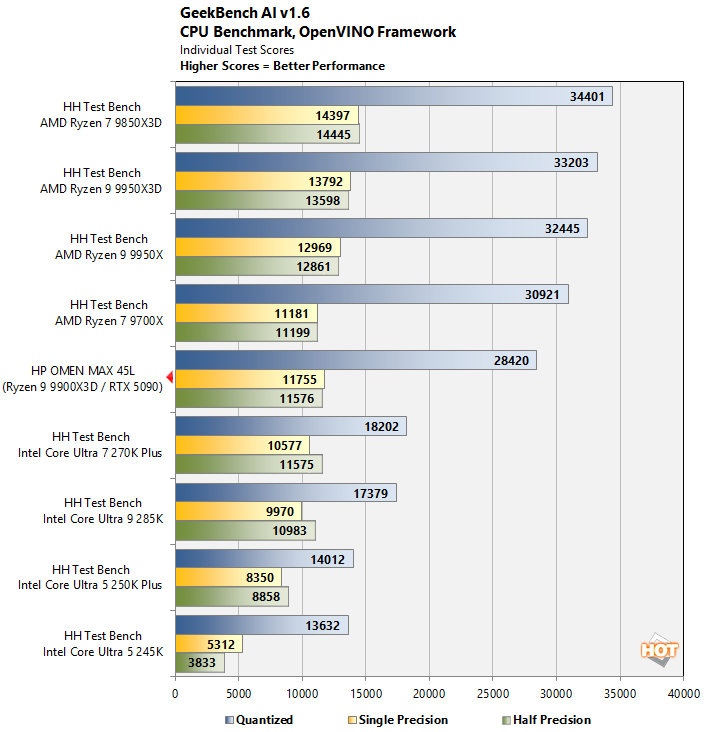
Just CPU tests here, as that's really the only interesting story; you already know how a GeForce RTX 5090 performs in AI, and there's no NPU on this chip. It's very interesting to see the Ryzen 9 9900X3D fall behind the Ryzen 7 9700X in the Quantized portion of this test; we suspect it's due to the overclocked memory we use on our test benches. AI as a workload can be quite sensitive to memory performance, and 3D V-Cache simply isn't capacious enough to save the 9900X3D here in the Quantized test.
PCMark 10 Productivity Testing On The HP OMEN Max 45L
The standard PCMark 10 benchmark uses a mix of real-world applications like OpenOffice and Zoom as well as simulated workloads to establish how well a given system performs productivity and content creation tasks, including (but not limited to) image and video editing, web browsing, teleconferencing, document creation, and so on. We ran it on all these machines to see which one is the best for creative work.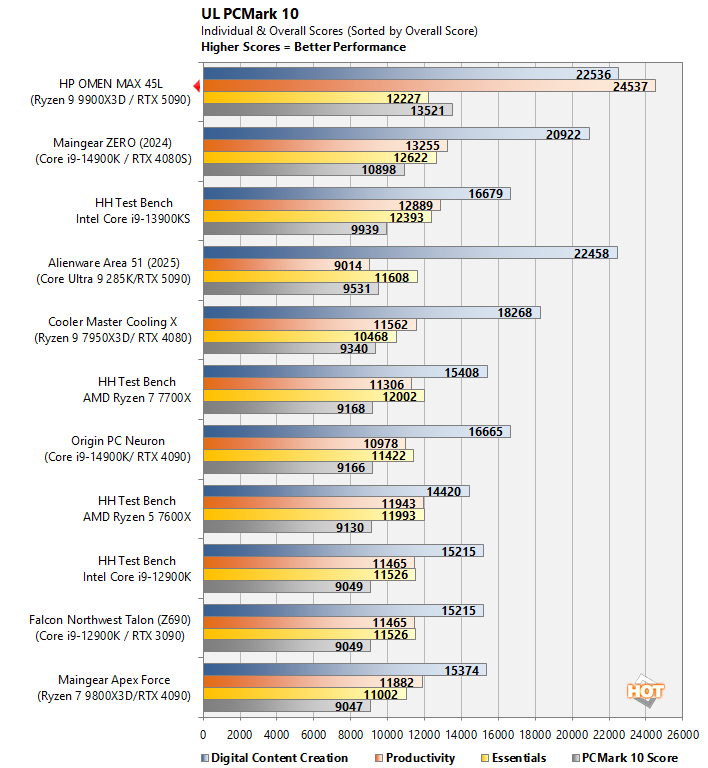
This is a crazy, world-beating result for the Omen Max 45L, propelled to the top by an absolutely outstanding Productivity score. It's not clear to us why this machine exploded past every score we've seen in that test, but the result is consistent across runs. The GeForce RTX 5090 also delivers a commanding performance in the Digital Content Creation test, too, as we've seen before.
Microsoft Office Performance On The HP OMEN Max 45L
Next up, we're reporting all test results from the PCMark 10 Applications benchmark suite, which uses actual Microsoft Office applications in addition to the Microsoft Edge browser. The workloads are specific to each Office application (Word, Excel, and PowerPoint), and the Edge tests simulate real-world web browsing. This test is cross-platform, meaning it works natively on Windows on Arm machines, too.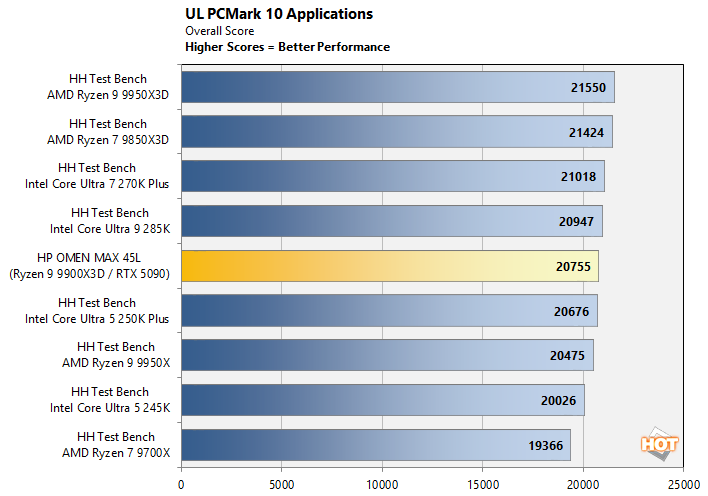
The result here is much more like what we would expect out of this machine, although this test is really intended for thin & light laptops, not beefy gaming systems. Every result here is destroying this benchmark.
HP OMEN Max 45L Memory Latency Microbenchmarking
System memory latency can have an outsized effect on the performance of certain applications, particularly in the realm of gaming. Console game emulators and high-speed competitive titles can both have gigantic swings in performance depending on the memory timings of the system in question. We wanted to check out the memory latency on the Omen Max 45L because this machine uses relatively inexpensive Kingston memory that runs loose timings. Check it out:
(Click to see the numeric data)
100ns for a gaming desktop is pretty rough. Ideally, we would want these numbers to be in the low 60s, but anything under 80 is acceptable enough. Over 100 nanoseconds memory latency for a gaming desktop is not ideal. Thankfully, this chip has 3D V-Cache, which helps to mitigate the hit somewhat. We'll talk more about this on the next page, when we do some manual memory tuning.