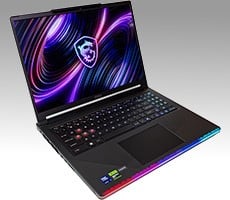


MSI Claw 8 EX AI+ Review: Arc G3 Extreme Takes The Handheld Crown


The MSI Claw 8 EX AI+ Software Experience

Indeed, this machine launches into Microsoft's full-screen Xbox experience, just like the ROG Xbox Ally X. That machine wouldn't let us proceed unless we linked a Microsoft account; Microsoft has thankfully patched the app to allow you to browse it without logging in. It's still awkward that the system boots to the above screen every time if you're not signed in to a Microsoft account, though, and the Xbox app itself is basically a glorified launcher for your other games in that case, since you can't download or play any Xbox games without logging in. Thankfully, you can disable the "boot to Xbox" functionality in Windows' gaming settings.
The most notable piece of pre-installed software is MSI Center M, a modified version of MSI Center made for handheld gaming machines. To be blunt, this is largely an unabashed clone of the version of ASUS Armoury Crate that comes on the ROG Ally handhelds. That's not really a bad thing, though; in fact, we actually like MSI Center M a little better than Armoury Crate. Let's take a look at a few of the screens.

Tapping the right-side MSI Center button (below the Menu button) brings up the application. If you disable "Launch to Xbox" in the Windows settings, then the Claw 8 EX will instead launch to MSI Center M. If you prefer, you can disable that in the MSI Center M settings to have it boot to a regular old Windows desktop. Just like many other applications of the same stripe, MSI Center M automatically finds your games and lets you launch them from the front-end.
The buttons on the bottom of the front page here are, from left to right, User Scenario, Gamepad Settings, News and Updates, MSI Forum, and App Settings. We'll talk about the first two in a moment, but the other three are fairly self-explanatory. News and Updates lets you download drivers and software updates for the Claw 8 EX AI+, MSI Forum lets you grab Windows themes, wallpapers, and app skins, and then the app settings let you adjust things like whether you want to boot into MSI Center M and the RGB Mystic Light settings.
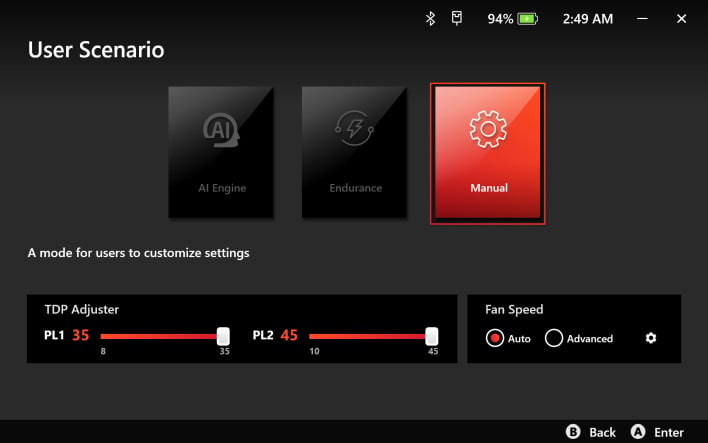
The USer Scenario selection gives you three options: AI Engine, Endurance, and Manual. AI Engine says that it dynamically adjusts power limits to give you the best combination of battery life and performance. In practice, we found that this offered the best overall performance despite that the power limits are set to 25W (PL1) and 37W (PL2) in this mode by default, less than the 45W max you can set for PL2 in Manual mode.
Setting Power Levels For Optimal Performance Or Efficiency
That's right: to configure this machine, you're going to have to understand some Intel overclocking terminology. For those who don't know, "PL1" is basically the CPU's sustainable power limit. This is the "real" power limit, which is to say that it's the power limit that most games are going to use most of the time. PL2 is the "turbo" power limit, a higher power level that the CPU is allowed to use temporarily to boost performance.Having to set power limits manually in watts is not a problem; that's how it works on the Steam Deck, after all. The problem is exposing both PL1 and PL2. PL2 is nearly irrelevant for gaming because games are not short-period workloads. The idea of PL2 is that a chip can briefly boost higher to crunch through a short workload rapidly, but games don't work that way. You launch a game and play it for an hour or more; the time limit on PL2 is usually measured in tens of seconds. In other words, I don't really understand why MSI and Intel are asking users to set PL1 and PL2.

Thankfully you can avoid this by just using the "AI Engine" setting.
So you might think, well, just set them to the same thing, right? Except that if you do that, Intel's power management firmware seems to do weird things with the clock speeds. Actually, in our experience, setting the power limit manually at all caused various weirdness with the power management firmware. Check out the frame times in the graph above; the "humps" are the game dropping to a jerky 40 FPS — "jerky" because it's outside the display's VRR window, and it immediately looks terrible.
Why was it abruptly dropping off that way? Well, the sensor data that we captured indicates that the issue is not caused by thermal or power limit throttling. Instead, the entire SoC, including CPU, GPU, and even memory frequencies, periodically drops to reduced clocks for no apparent reason. This seems like a firmware or platform-level power management bug, but you can completely avoid it by just leaving the performance preset on "AI Engine". That does leave some performance on the table, potentially, but as you'll see, it isn't much. AI Engine can dynamically scale PL1 up to 30W if need be.
Oh, and the Endurance Gaming preset uses values of 15W for PL1 and 20W for PL2; it absolutely improves battery life, but it also enforces a framerate cap of 30, 40 or 60 FPS (user configurable) on whatever game you're playing. This feature should be great if you're trying to play Romance of the Three Kingdoms or Endless Legend for like twelve hours on battery, but we need to do more testing with it and we'll update our experiences here shortly.
Gamepad Mode and Desktop Mode Profiles Explored
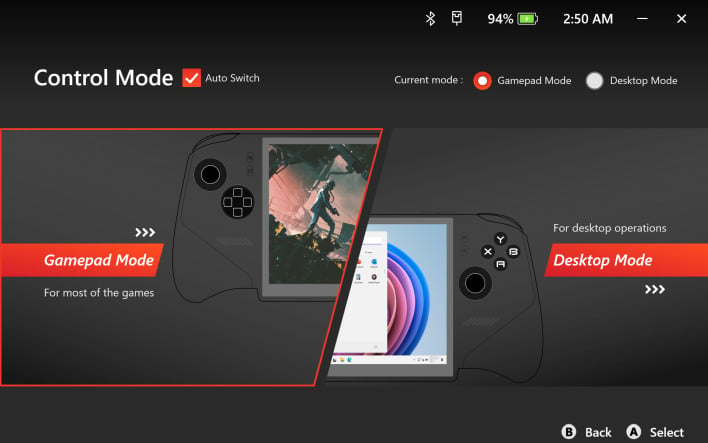
The gamepad settings let you rebind the inputs in separate Gamepad Mode and Desktop Mode profiles. In theory, the machine should auto-switch between Gamepad mode and Desktop mode, but in practice we never actually observed that happening. However, this is really not a problem because you can manually switch by bringing up the Game Bar overlay with the dedicated button for exactly that purpose. Besides, the screen is a touchscreen so there's honestly not a lot of need for gamepad-as-mouse anyway. If you prefer to rebind the controls, though, you can do that here.
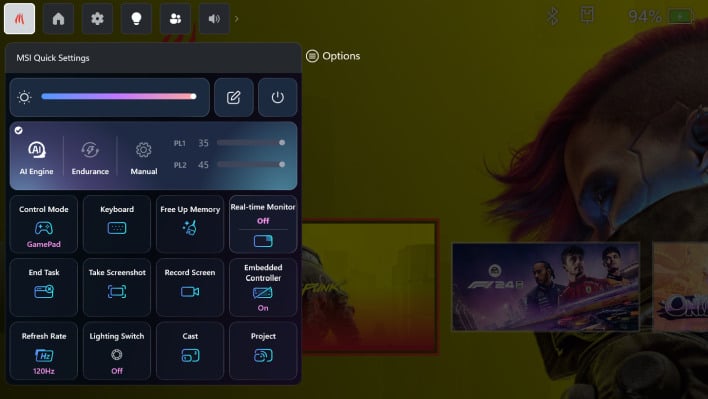
Finally, this is the MSI Quick Settings window built into the Microsoft Game Bar overlay. It's actually quite convenient; here, you can adjust the system brightness, change User Scenario and power levels on the fly, change the gamepad control mode, disable the embedded controller if you want to use an external one, toggle on or off the RGB lighting accents, adjust the screen refresh rate for improved efficiency, and use a nebulous "Free Up Memory" button that claims to recover about 10GB every time we've clicked it. It's not clear if this is useful, but it's certainly entertaining.
Summarized, MSI Center M is one of the less-offensive OEM software packages that come bundled on gaming handhelds. There are worse offenders in the market for sure, but I'd really like to see these packages go the way of the dodo altogether, in favor of standardized Windows controls. Let's check out a few system benchmarks and then jump into the gaming tests.
MSI Claw 8 EX AI+ Storage And System Benchmarks
You probably don't care how the Arc G3 Extreme does in Cinebench or local AI inference. Neither do we, so we didn't run those tests. (Although if you do want to see them, let us know in the comments and we'll crank them out for you.) The three system benchmarks we have for you here are the ATTO Disk Benchmark, Browserbench Speedometer 3.1, and Geekbench 6. Let's start with ATTO.ATTO Disk Benchmark
As is tradition, we'll start off the barrage of benchmarks with this venerable storage subsystem test. The ATTO disk benchmark is a fairly quick and simple utility that measures read/write bandwidth and IOPS across a range of different data sizes. While we don't typically compare these results across multiple machines, it's useful to gauge whether a particular system's storage subsystem is up to snuff.
MSI shipped this machine with a Micron 2500 SSD inside. This is a mid-range PCIe 4.0 x4 NVMe drive with no DRAM cache, but it still delivers excellent performance thanks to the fast 232-layer NAND and judicious use of Host Memory Buffer. This is actually the fastest SSD we've seen in a gaming handheld to date. Bravo, MSI, for your storage selection here.
Speedometer 3 Browser Benchmark
We use BrowserBench.org's Speedometer test to take a holistic look at web application performance. This test automatically loads and runs a variety of sample web apps using the most popular web development frameworks around, including React, Angular, Ember.js, and even simple JavaScript. This test is an example of how systems cope with real-world, modern web apps. All tests were performed using the latest version of Chrome.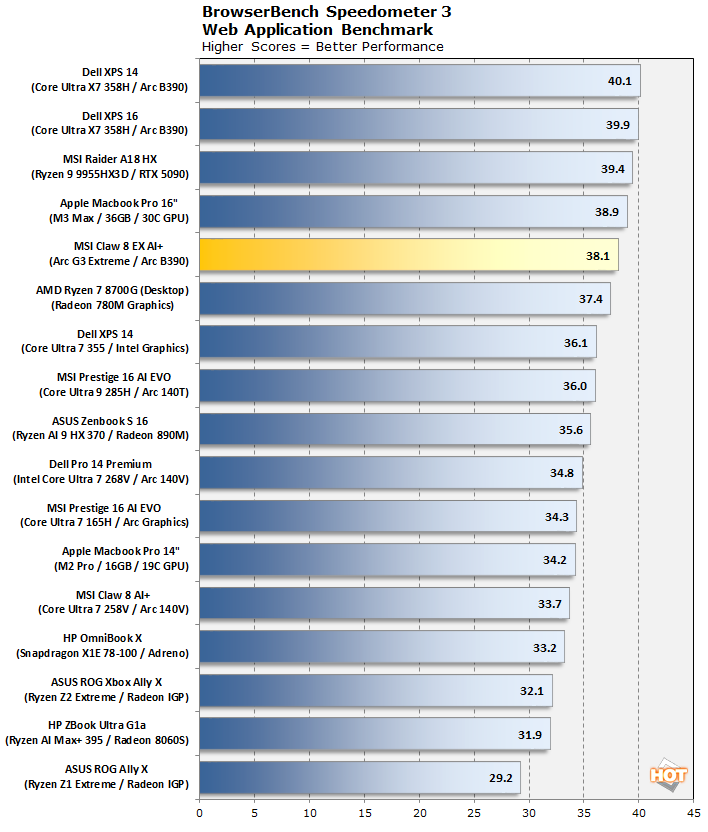
The Arc G3 Extreme falls a little behind the Core Ultra X7 358H powered laptop based on the same architecture, but that's to be expected considering the slightly lower clock rates. Browser performance is certainly solid enough if for some reason you need to mess with web apps on the Claw 8 EX AI+.
Geekbench v6.5 CPU Benchmark
The Geekbench CPU tests stress only the processor cores in a system (not the graphics card/GPU), with both single and multi-threaded workloads. The tests are comprised of encryption processing, image compression, HTML5 parsing, physics calculations and other general purpose compute processing workloads.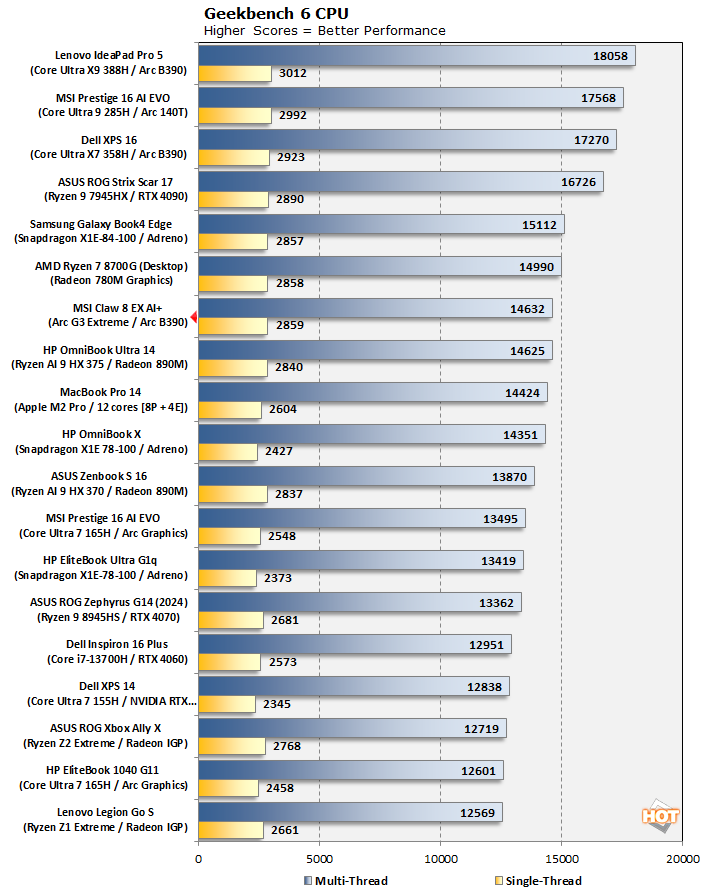
This Geekbench 6 result is actually fascinating, because the Arc G3 Extreme is hanging tough with some very fast processors. Obviously, the higher-end CPUs at the top of the chart run away in this test, thanks to having higher power limits and many-cores, but if you look at the list of things that the Arc G3 is handily beating it's quite impressive. It's no surprise that Panther Lake is fast, but it's nice to see it confirmed in this form factor and chip configuration.
And that's going to round out our system benchmarks. We don't expect most people to be as interested in how the Arc G3 handles productivity and rendering tests, but if you're dying to see those results, let us know in the comments and we can circle back.
Now, for what you came here to see: gaming benchmarks, next!