ASUS ROG Xbox Ally X Review: Excellent But Evolutionary Handheld PC Gaming


ASUS ROG Xbox Ally X Software Experience

Excellent job shilling a game that we already have installed, Xbox.
By default, when you boot the ASUS ROG Xbox Ally X, you don't see a Desktop at all. Instead, you start up directly into the Xbox Full Screen Experience. The first page lists games you've either installed or have been playing recently, but below that, it advertises new games and Game Pass services. There's no way to configure the app to launch directly to your library, unlike Steam, at least for now.
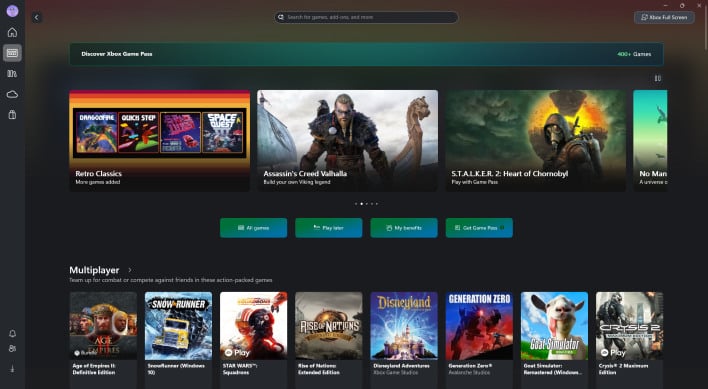
Along the left side is a sidebar that has shortcuts to the various sections of the app; the second button takes you to the Game Pass page, where you can't do anything if you aren't signed up. Oh, and you can't use this machine without a Microsoft log-in--at least, not officially. The usual OOBE bypasses were disabled on our system, although we can't say for sure if retail units will be the same.
You might notice everything is smaller in this screenshot versus the one above. That's because, rather than maintaining a unified scaling like an Xbox would do, this app is affected by the Windows display scaling option. Turn off the default 150% scaling and everything gets smaller. Some parts are too small, maybe—for a touch interface, anyway.
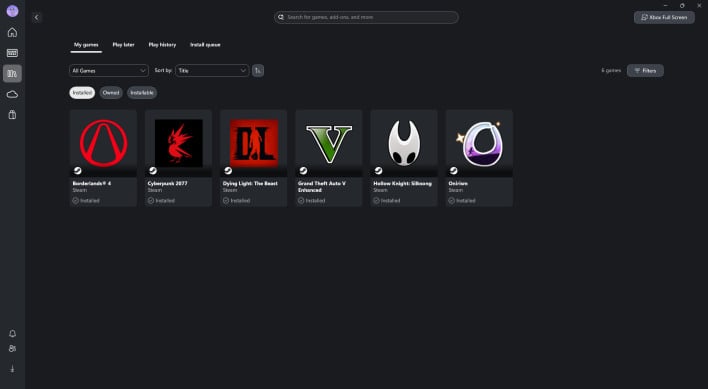
On the third tab, is the game library. This aggregates games from every game service you have installed, although we only had Steam set up on this system. It supports Epic Games and EA Play for sure, and may support GOG Galaxy as well, although we haven't verified that. The app can also detect and include game launchers from bare executables directly off of your disk; it found Zenless Zone Zero after we launched it that way, so it's probably safe to say that Microsoft is tracking every app launch for this purpose.
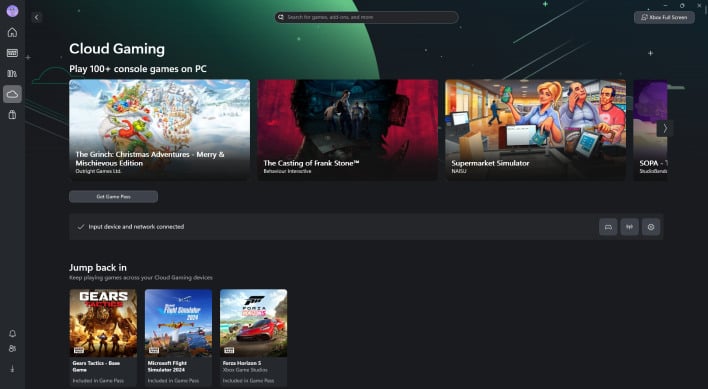
The fourth tab is dedicated to Cloud Gaming. To unlock these features, you'll have to be a Game Pass subscriber. This machine actually includes three months of Game Pass Ultimate, but you have to put in a credit card to claim that offer.
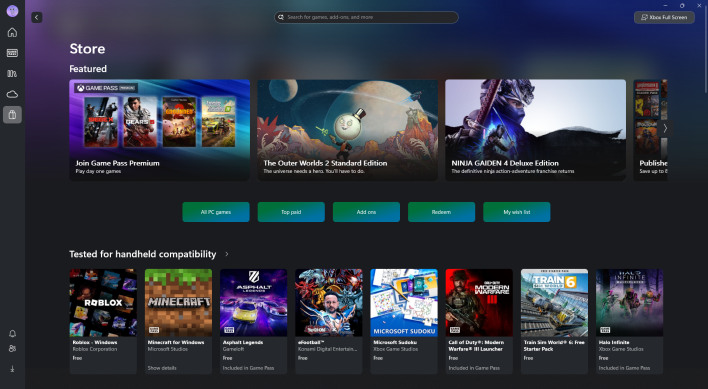
Finally, the last page in the Xbox app is essentially just the Microsoft Store, but a games-only version of it. There's a section there for games that are known to work well with the Xbox Ally devices, which is pretty neat. If you're keen on buying things from the Microsoft Store, here's where you'll do it. Of course, you can also use the desktop version of the Store.
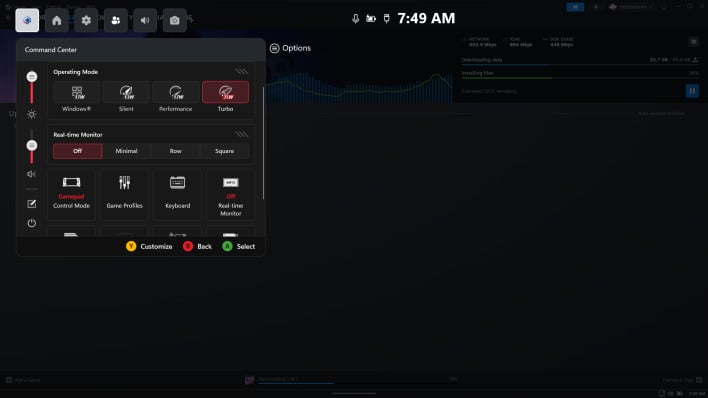
The overlay that came with earlier Ally devices was powered by Armoury Crate, and it is no more. Now, those functions have been integrated into the Xbox Game Bar, similar to how the overlay on the MSI Claw works. Functionally, the overlay is the same, except that you can't see all of the functions at once anymore. Still, all of the usual functions are here: the ability to toggle the gamepad on and off, the ability to switch from pad to mouse mode and vice versa, the ability to enable a performance overlay, the ability to set your performance preset, and more. This is what comes up when you press the Armoury Crate button.
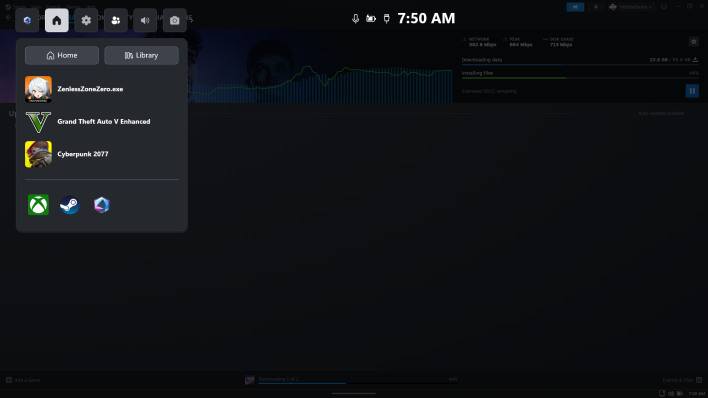
This is the tab that opens when you press the Xbox Guide button now. It offers quick access to your most-recently played games, as well as various store apps. It's hard to imagine launching games from a quick menu like this at first, but frankly, it's not much different from right-clicking the Steam icon in the notification area.
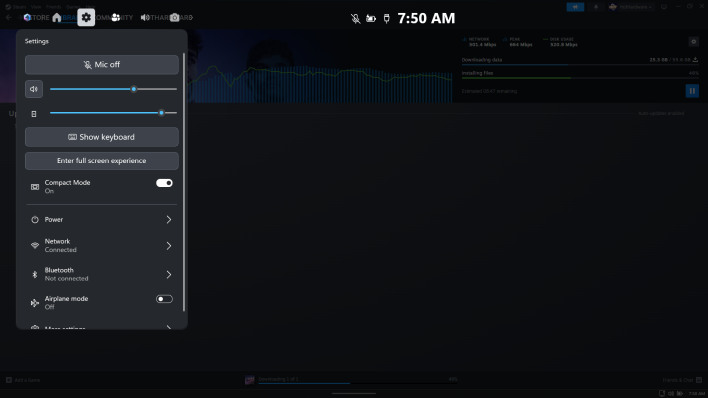
This is the settings tab, and you can get here by simply pressing RB when the overlay is open. This lets you control audio functions, bring up the on-screen keyboard, and toggle the various things that are available from Windows' notification area. Notably, this is the only way to do these things while you are in the full-screen experience.
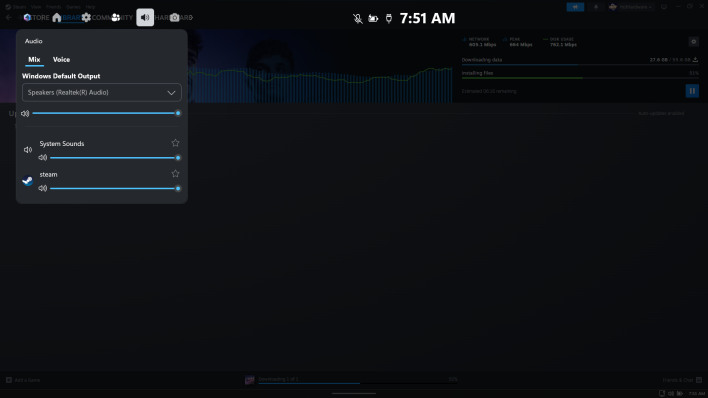
On the Audio tab, you can manually adjust the volume of each app as well as change the default audio output device. If you tap Voice, you can select the default audio input device and adjust the volume for that, too. This has been in Windows for a while, but it's pretty handy on a device like this where you're not likely to have a mouse at hand.
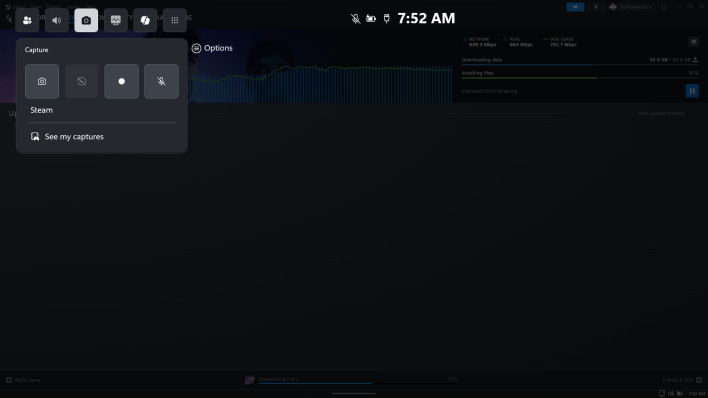
The Capture tab lets you take screenshots and record video while gaming. We haven't experimented with this yet, so we can't tell you how well it works, unfortunately.
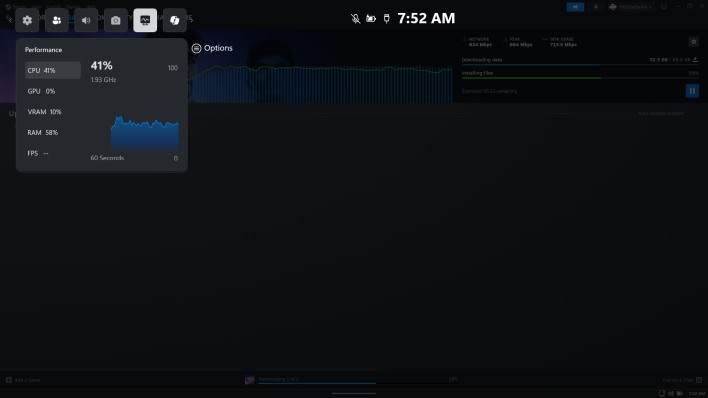
The Performance tab lets you check out how your machine is handling whatever game you're playing. This is cool, but we'd actually just use the Steam overlay for this purpose, as it has a better readout for this information (and offers more information.)
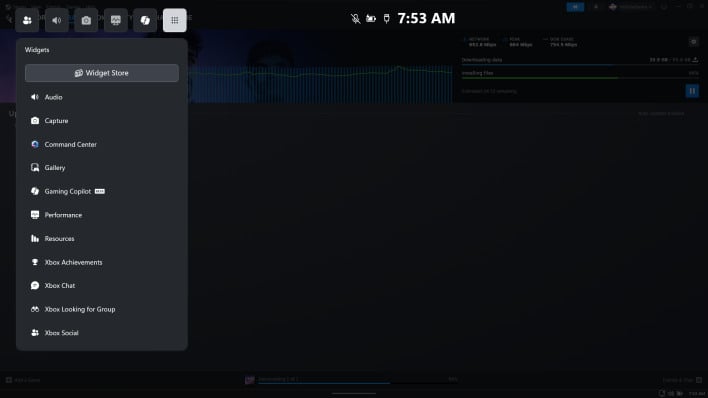
Controversially, there's also the Gaming Copilot tab, which lets you consult Copilot about your game if, say, you get stuck. You can chat with it, talk to it, or view your history of communicating with the agent. We think we'd probably just Google up a Steam Guide, but the function is there if you prefer talking to LLMs. Oh, and the last tab, which we didn't screenshot, simply lets you toggle these widgets on and off.
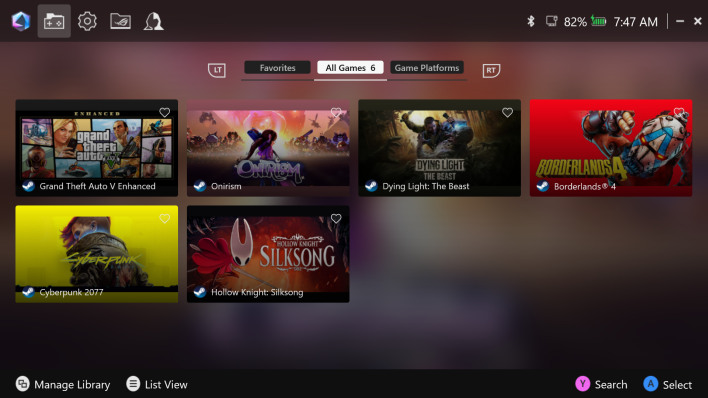
Of course, being an ASUS ROG device, this machine includes the familiar Armoury Crate. There's really not a lot to say here; if you've seen Armoury Crate, you know what it looks like and what it does. We've covered it extensively in previous reviews, too. You can check our review of the original ROG Ally X for a more comprehensive overview of its functions.
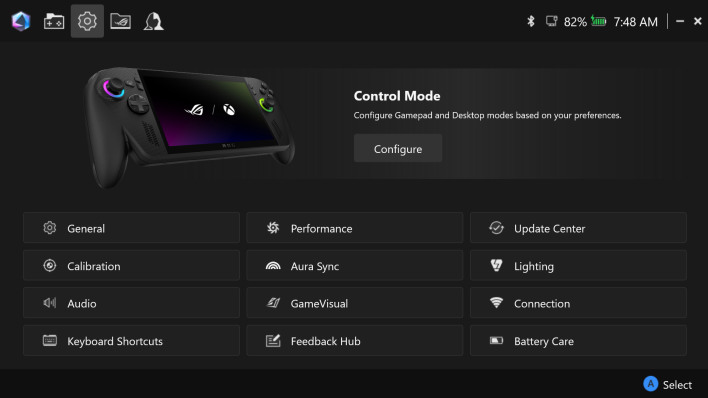
The version of Armoury Crate on the ROG Xbox Ally X is newer than we've seen, though. It consolidates all of the configuration settings onto a single page, which is great. You'll want to open this app at least occasionally to check for updates to the system firmware and drivers, because this is where they'll come from.
Overall, the machine is heavily loaded with software—there's also the MyASUS and GlideX applications preinstalled—but not as much as some devices we've seen. You don't have to worry about "Nahimic" or "Intelligo" or McAfee here, which is nice.
ASUS ROG Xbox Ally X Gaming Handheld System Benchmarks
We know, you probably didn't come here to see how the ASUS ROG Xbox Ally X runs Cinebench or AI inference—so we didn't bother to test those things on it. Kidding aside, we were really strapped for time doing this review, and so we skipped most of the usual productivity and synthetic tests that we normally do. However, we did run a few things of that nature; let's take a look.ATTO Disk Benchmark
As is tradition, we'll start off the barrage of benchmarks with ATTO. The ATTO disk benchmark is a fairly quick and simple test which measures read/write bandwidth and IOPS across a range of different data sizes. While we don't typically compare these results across multiple machines, it's useful to gauge whether a particular system's storage subsystem is up to snuff.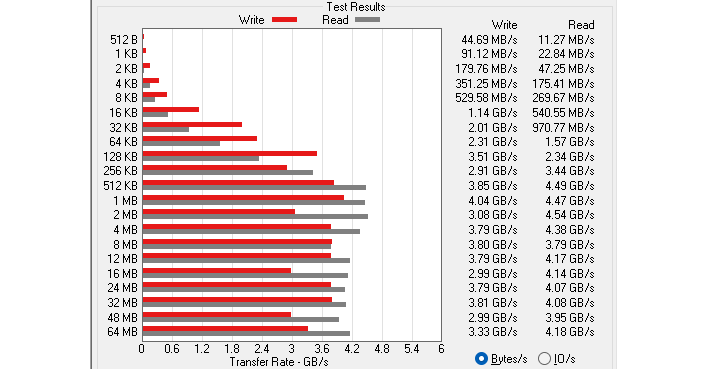
The opaquely-named "MZVMA1T0HCLD-00BTW" SSD inside the ROG Xbox Ally X isn't exactly a screamer. It's a DRAM-less design, and the performance ranges from tepid to poor, at least for a PCIe 4.0 SSD. Performance really tanks at small transfer sizes; it's normal for drives to slow down with smaller transfers, but this is a little extreme. Fortunately this won't be an issue with most games, but the rare titles that make use of thousands of tiny files might have longer than expected load times on this SSD.
Speedometer 3 Browser Benchmark
We use BrowserBench.org's Speedometer test to take a holistic look at web application performance. This test automatically loads and runs a variety of sample web apps using the most popular web development frameworks around, including React, Angular, Ember.js, and more. This test is a better example of how systems cope with real web applications in comparison with a more compute-focused test like JetStream. All tests were performed using the latest version of Chrome.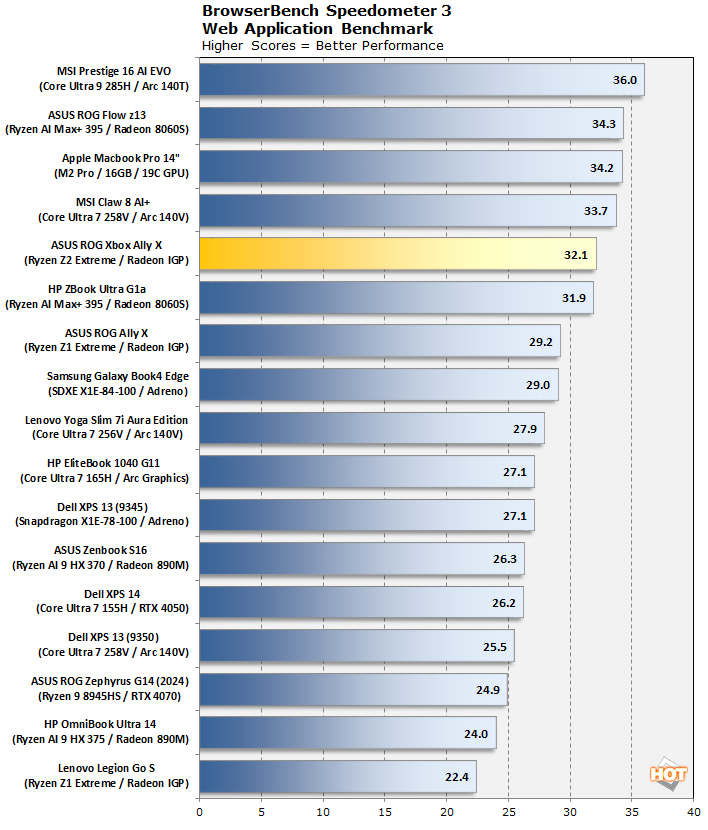
Speedometer results are quite decent, and broadly in the same range as the Ryzen AI Max+ 395 machines on our list, which use the same Zen 5 CPU architecture at approximately the same 5 GHz max clock rate.
Geekbench 6 Whole System Benchmarks
Geekbench is a cross-platform benchmark that simulates real-world workloads in a wide variety of tasks, including encryption, image processing, physical simulation, machine learning, and many more. We tested the systems featured here with the latest Geekbench 6 version to get an idea of their overall system performance.
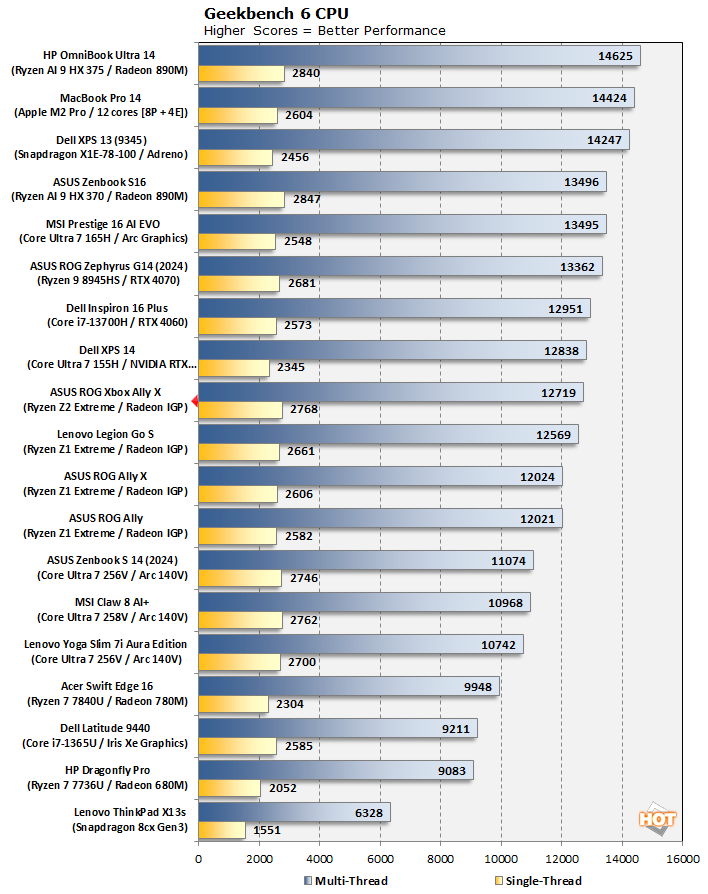
The ROG Xbox Ally X's Geekbench multi-core result is pretty decent for a chip that is nominally a 3+5 design—not that there's much difference between a Zen 5 core and a Zen 5c core. It stomps on the Intel Lunar Lake machines in multi-core, while providing credible competition in the single-core tests.
Of course, the real reason you're here reading this is assuredly the gaming benchmarks on the next page. Read on to find out how the ROG Xbox Ally X fares in games...