A Tiny NAS With Big Storage: Beelink Me Pro & 22TB WD Red Review

Beelink's Me Pro NAS Is A Tiny, Full-Featured Network Storage Device That Looks As Good As It Performs

| Beelink Me Pro NAS: $379 - $559 ($459 As Tested) The Beelink Me Pro NAS is a modular, well-built, small for factor two-bay NAS device with good looks and an excellent feature set.
|
|||

|

|
||
I’m a bit of a data hoarder. I have copies of almost every article I’ve ever written for HotHardware or the various print magazines and other publications that I have contributed to over the years, all stashed on a network attached storage (NAS) device. I’ve also got tons of digital media stored on another NAS, and both are backed up to a third device. So, when given the opportunity to check out the Beelink Me Pro NAS, I thought I’d give it a shot. You can never have too much network attached storage, and when you strap a couple of WD Red 22 Terabyte drives on board, things get spacious.
I have firsthand experience with NAS devices from Synology, Thecus, Buffalo, WD, TerraMaster and QNAP (among other solutions), and the Beelink Me Pro is quite different from them all. First, this particular device is extremely small—it’s only a bit taller than the two 3.5” drive bays inside. It’s also built like a tank. Except for some decorative accents, the Beelink Me Pro is entirely made of rigid aluminum. The Intel-powered version of the Beelink Me Pro is also effectively a full-featured mini-PC running Windows 11. Most other devices of this type typically feature a streamlined, Linux-based OS of some sort, purpose built for a NAS, with various apps to add features and capabilities. Beelink does offer other compute modules powered by Arm-based or AMD SoCs that work similarly and use alternative operating systems, but the Beelink Me Pro offers the flexibility—and all of the caveats—of a full Windows install.
Check it out...

Beelink Me Pro NAS Features And Specifications


There are multiple configurations of the Beelink Me Pro available, with various processors, memory configurations and storage options, but the particular one shown here is built around the Intel Alder Lake N95 processors (4C / 4T), with Intel UHD Graphics, paired to 12GB of RAM, and a 512GB WD SN540 SSD NVMe SSD. Me Pros with processors up to the N150, 16GB of RAM, and 1TB NVMe storage are also available, at varying price points.
In terms of connectivity, the device is packing Wi-Fi 6 (MediaTek), Bluetooth 5.4, multiple USB-A and USB-C ports (up to 10Gbps), an HDMI output, and dual ethernet controllers, one 5Gb from Realtek and another 2.5Gb from Intel. Internally, the Beelink Me Pro also offers two, 3.5” SATA drive bays (which can also accommodate 2.5” drives) and three M.2 NVMe slots. One of those slots is a PCIe Gen 3 x 2 slot, which holds the OS drive, and the other two are PCIe Gen 3 x 1 slots, which is rather unusual. You may think the bandwidth offered by a PCIe Gen 3 x 1 slot is too low to be useful, but keep in mind, this system is designed for network attached storage use, so transfer speeds will most often be limited by the network connection. 1Gb ethernet will top out at about 111MB/s in the real-world, 2.5Gb at about 290MB/s, and 5GB at about 580MB/s. For reference, a single PCIe Gen 3 lane is capable of about 985MB/s.
Beelink Me Pro Design And Aesthetics

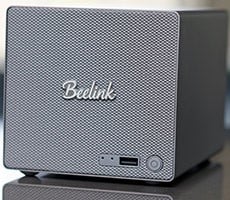
In my opinion, the Beelink Me Pro looks awesome. It has a vintage Marshall guitar amplifier vibe (similar to Marshall’s current high-end Bluetooth speakers), with clean lines and tasteful accents.
The front has a slick mesh akin to a speaker grill fabric and is home to the power button, a USB-A port, and reset and clear CMOS buttons, which are recessed behind tiny holes.

The sides and top of the machine are clean, smooth aluminum, with a Beelink logo emblazoned on the top, near the front edge of the device. On the bottom there’s some ventilation holes on a removable plate with a rubber holder for a tiny Allen wrench attached, which can be used to assemble / disassemble the device. Removing that bottom plate reveals the internal M.2 drive bays.

And at the back of the Beelink Me Pro are the two 3.5” drive bays behind a removable mesh filter, along with all of the various other connectivity—ethernet, USB, HDMI, power, etc. The mesh cover is held on magnetically and can be removed by simply pulling on the small tab, situated at the top.

There are small, black Allen screws holding the drive bays, bottom cover, and compute module in place. They’re easy enough to remove to get at everything, but they are not captive, so be careful. The screws are tiny and easy to lose—if you drop one, it’s likely to warp into the 9th dimension to never be found again...
How To Build-Up The Beelink Me Pro NAS With Storage Media
Assembling the Beelink Me Pro is very straightforward. For most users, we suspect adding a couple of beefy hard drives is all that’ll be required, but additional M.2 storage can be added as well.
To assemble the Beelink Me Pro, simply pull off the rear mesh cover and remove the two screws on each drive bay, with the included Allen wrench. With the screws removed, the drive trays slide right out.


Beelink also includes all of the screws and cables you’ll need to get going for both 2.5” and 3.5” drives, both network connections, and power. The Beelink Me Pro includes a small wall wart for power and doesn’t have an internal power supply.


Once assembled, simply boot the Beelink Me Pro, finish the Windows 11 setup (designate your user account, connect to a network, etc.), head into Disk Management, and configure the drives to your liking. Once that’s done, create a network share on the storage volume and it’ll appear on your network, just like any other shared folder on a Windows PC.
Beelink Me Pro Parts And Performance
We installed a pair of WD Red 22TB drives for testing. WD’s Red series of drives are designed for use in network attached storage devices and are qualified for 24/7 operation, optimized for various RAID options, and have more robust vibration dampening, purpose-built for multi-drive enclosures. Anecdotally, I’ve never had a (knock on wood) WD Red drive fail in any of my servers or NAS devices but have burned through a half dozen standard desktop drives over the years.
To assess the maximum performance potential of these WD RED 22TB drives, we ran a couple of local benchmarks in single-drive and RAID 0 (striped) configurations.
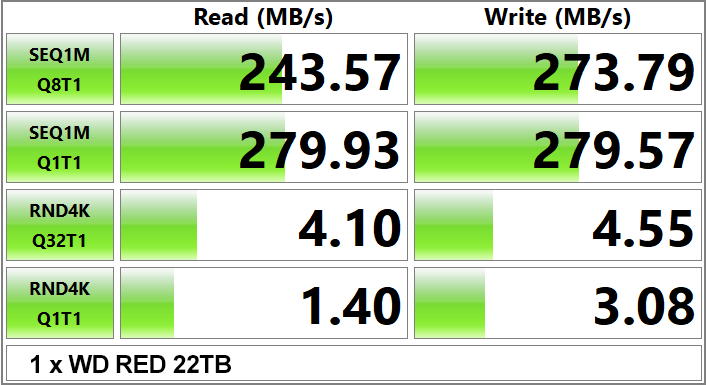
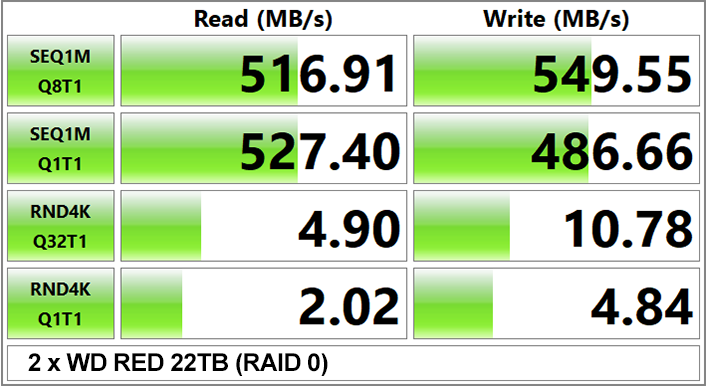
In a single-drive setup (which would perform similarly to a RAID 1 mirrored configuration in terms of transfer speeds), sequential transfers top out at approximately 280MB/s, which is just enough to saturate a 2.5Gb ethernet connection. With a pair of drives in RAID 0, max sequential transfers nearly double and peak at about 550MB/s, which is about the max for a 5Gb connection.
We’re not going to dive into the various drive array options available but be sure to research which would be best for your needs. If max performance is your only consideration, RAID 0 (striped) will offer the highest transfers and maximum capacity, but if either drive in the array fails, all of your data is lost. RAID 1 (mirrored) offers some redundancy, but you lose half of the total capacity (two 22TB drives in RAID 1 offers 22TB of storage, despite 44TB worth of platters) and maximum transfer speeds are similar to a single drive. A spanned array of drives is also an option for maximum storage capacity, but if a drive fails, whatever was on that drive will be toast.
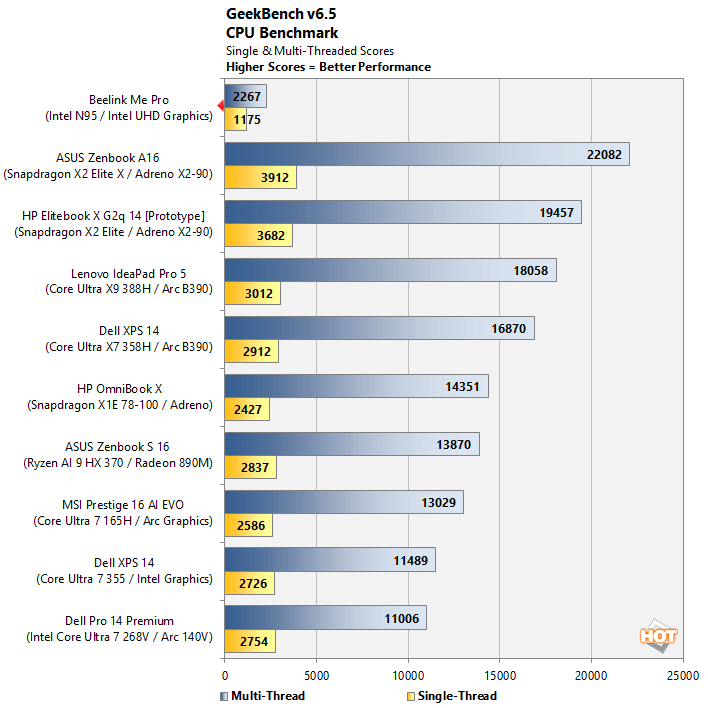
What about performance of that Intel Alder Lake SoC powering the Beelink Me Pro? Well, it’s a low power processor, that’s meant for light-duty edge applications. Since the device runs Windows, we ran a quick Geekbench test to show you how the N95 stacks up. As you can see, versus today’s latest mobile processors, the N95 doesn’t really compare. But it doesn’t need to either—this box is designed for storage duties, and it’s got plenty of horsepower for its intended task.
When the Beelink Me Pro is built-up, connected to a network, and a shared folder properly configured, it will be accessible by other systems on the network. To see how it performed as network attached storage device, we mapped a network drive on an adjacent desktop PC, connected through a 1Gb or 2.5Gb switch. We tried both because the vast majority of home networks are, unfortunately, still 1Gb, and we wanted to show you some realistic, real-world numbers. 2.5Gb network switches have gotten much more affordable in recent years, but 5Gb and 10Gb switches remain impractical for most folks—that’s changing, though. Keep in mind, peak transfers would be faster through a 5Gb or 10Gb switch.
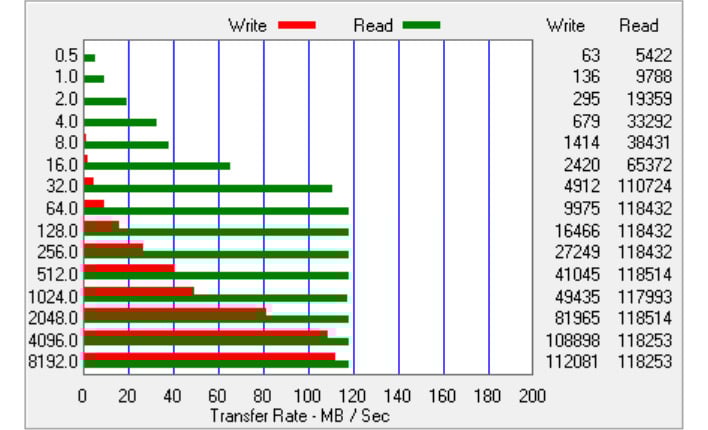
1Gb Ethernet
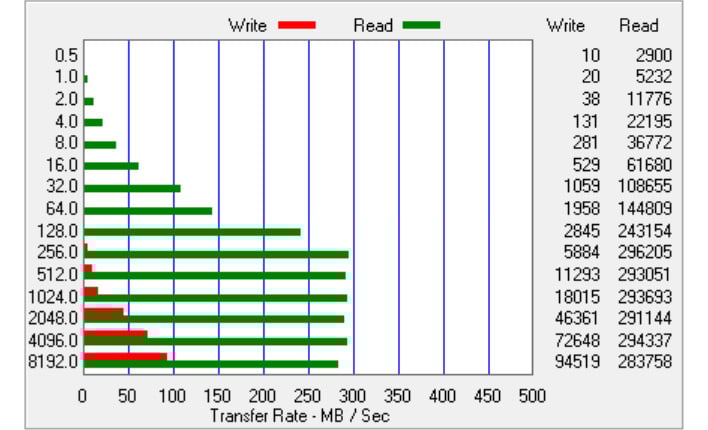
2.5Gb Ethernet
A legacy version of the ATTO Disk Benchmark (compatible with mapped network drives), show transfers peaking at just over 118MB/s over the 1Gb network. That number jumps up to over 290MB/s over the 2.5Gb network.
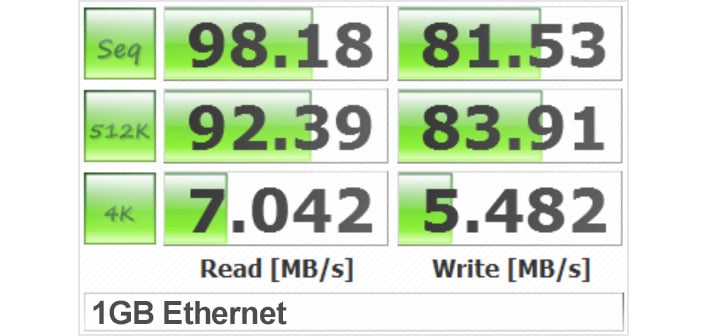
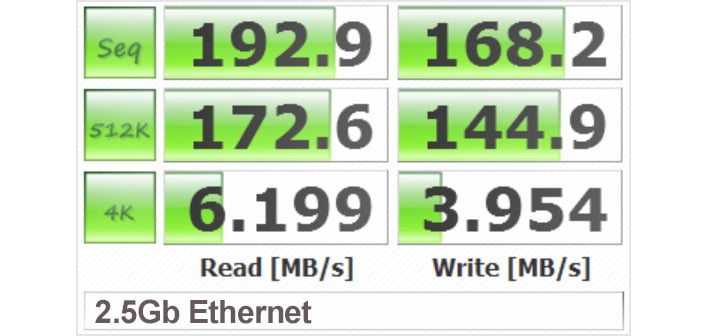
A version of CrystalDiskMark compatible with mapped networked drives tells a similar story. Transfers over the 1Gb network are in the 100MB/s range, but they nearly double over the 2.5Gb network.
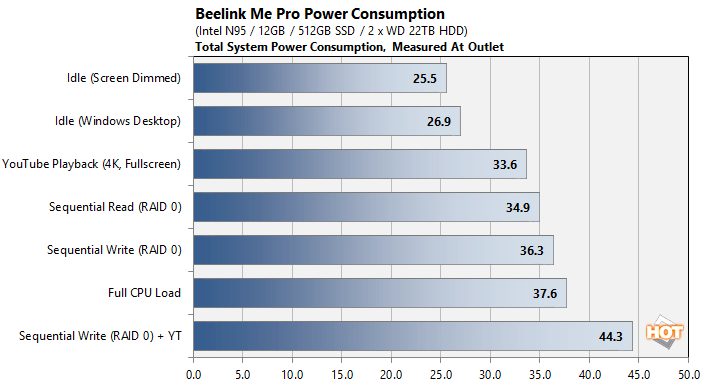
While all of this is happening, the Beelink Me Pro with WD drives we installed sips power. Because the device is effectively a full desktop PC, we monitored power consumption under a variety of circumstances. As you can see, even with a full screen high-resolution video playing, and a sequential write benchmark running across both WD Red 22TB drives simultaneously (striped in RAID 0), maximum power was just over 44 watts.

With such a small amount of power being consumed by the Beelink Me Pro, the device and internal drives can be cooled by a single fan. The fan on the compute module pulls air in through the top 3.5” drive bays, directs it over the SoC, and then exhausts it out the back. Throughout hours of testing, the fan speed never spun up and was essentially inaudible. The sounds emanating from the spinning hard drives are louder.

Is The Beelink Me Pro NAS Right For You? Final Thoughts & Review Conclusion
I really like the Beelink Me Pro. The tiny form factor, build quality, feature set, aesthetics, and connectivity options are all excellent. I also like that the device is essentially a full PC. Because the Beelink Me Pro runs Windows 11, it is highly configurable and compatible with just about every app or service in existence, from torrents and media service to cloud storage clients. Running Windows, however, also somewhat complicates the setup process. Many users will likely fine NAS devices with customized operating systems and apps, configurable through a browser interface, simpler to configure.The Beelink Me Pro’s PC roots also make it somewhat more expensive than other 2-bay NAS boxes. The Intel N95 / 12GB / 512GB SSD configuration tested here currently sells for about $460. A 12GB / 128GB SSD config with the same SoC sells for about $360, and higher-end options with the Intel N150, 16GB of RAM, and larger SSDs (up to 1TB) top out at about $560 currently (MSRP $679). Those prices make the Beelink Me Pro about $100 - $150 more than basic 2-bay NAS boxes (with less memory and OS storage), and somewhat pricier than other NAS devices with similar processors and memory configurations. The build quality, compactness, and Windows 11 license certainly add some cost and value to the Beelink Me Pro, however. And if the device is going to be placed somewhere visible in a home office or media center, its small form factor and aesthetics are great. This is an attractive little storage device in my opinion.
If you’re in the market for a 2-bay NAS and also like the idea of the box being a full PC, the Beelink Me Pro is worth a look. I wish Beelink would make 4 or 5 bay versions of the device though, to enable more RAID modes, and to build in some additional redundancy.