



This Hidden Windows 11 NVMe Driver May Give SSD Performance A Huge Speed Boost


First, a little background. Historically, Windows file I/O performance has lagged behind Linux for a variety of reasons, but the difference really diverged when NVMe SSDs became commonplace. The reason is due to the way the two operating systems implemented support for the drives. Linux implemented NVMe using a native driver that allows the kernel to talk NVMe directly to the drives. Windows didn't do that, because it would have required considerable rearchitecting of the I/O stack in Windows. Instead, NVMe SSDs were implemented through a legacy SCSI miniport. That's right: your expensive, brand-new PCIe 5.0 SSD is seen as a SCSI device by Windows.
This, obviously, wasn't catastrophic for performance, and in general it was a perfectly satisfactory solution. As they say, nothing is so permanent as a temporary solution. Microsoft's really been feeling the heat from Linux lately, though, even in its hallowed ground of client desktops and laptops. That might be why the company has finally done the necessary work to implement a native NVMe driver that reportedly gives humongous speed-ups. How humongous? How does a 45% jump in storage performance sound?
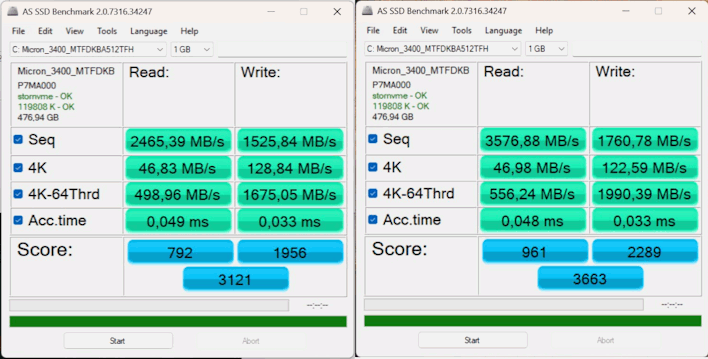
That's the performance gain that Alexander over at Notebookcheck saw on one of the two SSDs in his laptop after making the driver swap. That gain was surprisingly on sequential read operations in AS-SSD—surprising because Microsoft implies that the change largely impacts random IOPS, which would normally have a greater impact on the "4K" test in AS-SSD. He also saw gains in 4K reads and writes, but they were smaller.
Great! Free SSD performance just for swapping a driver. Don't head to Device Manager to do it yourself, though; apparently, it won't work that way because this driver isn't actually meant for Windows 11 yet--it's only officially available on Windows Server. Instead, this is where things get a little sketchy. To swap over to the new NVMe driver on Windows 11, you're going to have to run three commands that add DWORD values to your registry. Standard registry editing disclaimers apply; if you don't know exactly what you're doing here, don't do it.
That goes double in this case, though, because not all NVMe SSDs are fully compatible with the new driver, and if your drive doesn't work, this hack could render your system unbootable. It's also likely to break most SSD monitoring software, like Samsung Magician; they were simply coded to work with the old Microsoft driver and don't understand the new one. Furthermore, it's entirely possible that your drive may work, but deliver lower realized performance with the driver due to quirks of its firmware.
If you're okay with the risks, here's the magic words:
reg add HKEY_LOCAL_MACHINE\SYSTEM\CurrentControlSet\Policies\Microsoft\FeatureManagement\Overrides /v 735209102 /t REG_DWORD /d 1 /f
reg add HKEY_LOCAL_MACHINE\SYSTEM\CurrentControlSet\Policies\Microsoft\FeatureManagement\Overrides /v 1853569164 /t REG_DWORD /d 1 /f
reg add HKEY_LOCAL_MACHINE\SYSTEM\CurrentControlSet\Policies\Microsoft\FeatureManagement\Overrides /v 156965516 /t REG_DWORD /d 1 /f
- reg add HKLM\SYSTEM\CurrentControlSet\Policies\Microsoft\FeatureManagement\Overrides /v 735209102 /t REG_DWORD /d 1 /f
- reg add HKLM\SYSTEM\CurrentControlSet\Policies\Microsoft\FeatureManagement\Overrides /v 1853569164 /t REG_DWORD /d 1 /f
- reg add HKLM\SYSTEM\CurrentControlSet\Policies\Microsoft\FeatureManagement\Overrides /v 156965516 /t REG_DWORD /d 1 /f
Keep in mind the risks, and also that you're going to have to be on Windows 11 25H2 for this to work. The driver simply isn't present in older editions of Windows, although it would be interesting for someone to try transplanting the necessary files. Let us know in the comments below if you try out the new hack and how it works out for you. Don't forget to benchmark the 'before' state so you can compare to the 'after'!





