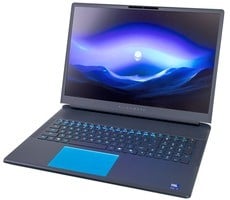
Alienware 16 & 18 Area-51 Laptops Reviewed: Benchmark-Crushing Gaming Beasts


Like virtually all systems that you'll buy these days, the Alienware Area-51 systems come with an array of pre-installed apps to control all of the included hardware, in this case from Dell, Microsoft, NVIDIA, and Intel. Some of it is quite handy, like the Alienware Command Center and the NVIDIA App. Some of it is more questionable, like Microsoft Copilot, the Intelligo and Dolby audio processing software, Dell SupportAssistant, and the Killer networking software.
We didn't do a full clean-out before testing, so our benchmark results include the effects of all of this software. It only really made a difference in one test, which you'll see on the next page, but it does detract from the user experience, as notifications pop up frequently, and updates happen randomly and often, sapping performance silently, even after you've just done updates yourself. We also experienced some random mouse hitching.

This is a screenshot from Resplendence Software's Latencymon. If you're not familiar, it's a tool that lets you analyze system latency by measuring Deferred Procedure Call (DPC) and interrupt handling times to identify driver or kernel components causing performance bottlenecks. The screenshot is from the Alienware 18, but both machines were having similar issues. We resolved some of the problem by uninstalling the Intelligo audio drivers, but there were still occasional, intermittent hitching issues that went unexplained. They weren't experience-ruining, but it's not exactly the kind of thing a premium laptop buyer should have to deal with.
Dell SupportAssist Software Overview And Experience

There are a handful of Dell background apps and tasks, but the two main applications that you'll interact with are Dell SupportAssist and Alienware Command Center. Both applications are surprisingly slow to launch and often you'll be greeted with the above scene for over a minute before it finally pops up an error complaining that it took too long to launch and is exiting, and you'll need to relaunch the app.

When the app opens fully, here's what you get. If you click on any of the five icons at the top, it'll take you to the next page, which looks like this:

Here, you can select which tasks you'd like the app to perform. This a reasonably convenient way to make sure that your system has the latest updates from Dell, not unlike similar apps from other laptop vendors. The other functions are of more questionable utility, but they're probably not going to hurt anything, and they probably give non-technical users some peace of mind, so we won't complain.

The updates function isn't flawless, though. For one thing, there's the obvious fault in the screenshot; the tooltip for the plug icon isn't legible. But also, the app is trying to install an older graphics driver than the one currently installed. You can tell the latest GeForce driver is installed because the NVIDIA App icon in the bottom right (of the full image) doesn't have a notification bang on it.

If you click through the headers at the top, there are more functions as well; SupportAssist can link you up with Alienware's Elite Care, or help you order parts and upgrades for your machine. It also can help you get started with the Dell Migrate app to transfer your files from your old PC, although, Dell charges $60 for this service.

The Support page is almost entirely the exact same things offered on the Home and Discover pages, although it does have the option to start a service request with Dell support.

On the Settings page, you can configure a few options, like how often you want scheduled scans to go off, how often you'd like the app to check for updates, and how often you'd like it to notify you to perform said updates.
Alienware Command Center Software Overview And Experience

Alienware Command Center is a necessity for managing the many functions of the Area-51 laptops. Unfortunately, similar to Support Assist, we had some issues launching Alienware Command Center on these systems.

This "System still booting up" message can come up even hours after the system has started, and sometimes, the only way to fix it we found, was to reinstall the app. We've had trouble with the Alienware Command Center on past Alienware machines, and these systems were no exception, although the app behaved much better after a fresh Windows install.

Once you actually get into the Alienware Command Center app, it works well enough. On this first page, you can click on the laptop to go directly to the AlienFX settings, or you can click on a performance preset in the bottom left to change the laptop's performance preset. On the bottom right, the game will list your recently-played games, but the tracking function for this wasn't working correctly.

The tabs along the left side allow you to go to different pages of the app. The Performance tab is more intelligently laid-out than it used to be, and you can now see both performance and thermal values on the "Performance" page, leading us to wonder what the point of the more limited 'Thermal' page is. In any case, you can view vital performance stats about your machine here, or click on a button at the top to set the performance profile. It's not clear to us why all six profiles can't simply be on screen and instead require a scroll button, though.

If you click on the Custom profile, you can customize fan speeds and even do a bit of manual overclocking on the CPU and GPU. The range of tweaks that you're allowed to make is small, but it's more than what most laptop vendors offer you, so props to Alienware for doing this much.

The next tab down lets you set the color and (optionally) motion of the RGB LED lighting accents on the system. We left them all at the default teal because we think it looks quite nice, but you could turn your Area-51 laptop into an amazing Technicolor dreamboat if you wanted.

The settings menu could use some streamlining in our opinion. Each section of the settings gets its own completely separate page in the settings dialog despite that all of the settings could easily fit on a single page. We're only going to look at a few of them here, though. The AWCC overlay can also be disabled here, and we recommend it, because it can interfere with other, more popular overlays, like Discord and Steam. The Steam overlay has temperature monitoring now, so there's no need for this in Steam games, although it could be useful in Xbox games, if you play those.

By default, Dell has the Alienware Command Center configured to use per-game profiles for performance preset control. In other words, you will assign each game a specific performance profile that the Command Center will set when you launch that game, and then it will return you to your original preset when you exit the game. This is a very common functionality in unified game launchers, like ASUS' Armoury Crate or Ayaneo's AyaSpace. AWCC also includes the ability to set performance presets globally, so you can manage it manually.

Finally, on the "Performance" tab—the one in settings, not the main performance tab—we have two very important controls. The top one decides whether the performance presets are allowed to mess with power limits and voltage settings, or only adjust fan curves. It's not completely clear why you would want to do this, but if you disable this option, there's very little difference between quiet mode and performance mode.
Meanwhile, the MUX Switch setting lets you completely disable the use of the integrated graphics, forcing all graphics duties onto the discrete GPU. This seems great, but the better way to do this is through the NVIDIA control panel, and the reason is because you can change between dGPU and iGPU modes without rebooting. Setting this switch to "dGPU Only" completely disables NVIDIA Advanced Optimus, so only use it if you're absolutely not going to be using hybrid mode at all.
In comparison to similar software packages from other vendors, Alienware Command Center unfortunately lacks features, like the ability to make and assign macros, and has some kinks that need to be worked out. We'd really like to see Dell create a revised app that is lighter (quicker to launch, especially), has a cleaner, more information-dense interface, and improved reliability.
Head over to the next page to see the benchmarks you're probably looking for.