|
|
| Gigabyte EX58-UD3R Layout & Features | ||||
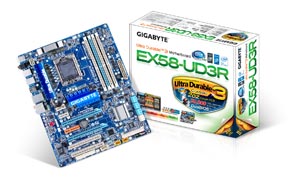
At their very core, these two boards are nearly identical in their layouts and features. However, there's very little that jumps out and grabs your attention, like there is on some of the more extravagant X58 boards we've taken a look at. In fact, both of these boards ship on relatively standard blue or green PCBs with pastel-colored components, including light blue PCI-E X16 slots, SATA ports and DIMM slots with a smattering of peach and beige-colored items thrown in for good measure. There are only four DIMM slots on the EX58-UD3R, although three of them can be used together for triple-channel DDR3 performance and the fourth used for additional memory capacity. The slots are numbered 1, 3, 2, 4, starting from the CPU socket. Triple channel users will want to use slots 1, 2, and 4, while dual channel memory owners will likely go slots 1 and 2, or 1 and 4. At this price point, there's probably few buyers who will go ahead and populate that fourth DIMM slot. Phase LEDs are placed in this same corner, along with a fan header and the 24-pin ATX power. The more Phase LEDs that get lit equates to a higher load on the CPU, but to see these LEDs in action Dynamic Energy Saver Advanced must be enabled in the BIOS first. The 8-pin ATX power is located up in the furthest corner, tucked in quite closely to the heatsink placed in this area.
Their cooling solutions receive slightly different approaches, the final decision of which seems a little puzzling. All heatsinks on both boards are passive, meaning that the prospective DIY builder needs to provide ample airflow within the chassis by installing and directing the air over the motherboard's components. Starting with the SouthBridge, low profile heatsinks help cool down the chipset, yet remain low enough so as not to interfere with the sometimes larger graphic cards that will pass directly over them. Another smaller heatsink is also installed on the set of MOSFETs on the adjacent side of the CPU Socket area. In the case of all three of these heatsinks, the samples used on the cheaper UD3R are either larger or wider that the ones found on the UD4P, and thus providing slightly better performance. That being said, there are a larger number of chokes found on the UD4P, which help regulate voltages better, which results in less heat production, so there's a bit of a tradeoff here. There are only two PCI-E X16 slots on the UD3R. These complement the 2 PCI-E X1, 1 PCI-E X4, and 2 PCI slots used for adding in third-party cards. The ICH10/R and GB SATA2 chipset both support RAID setups, with the former providing RAID 0, 1, 5, and 10 configurations, and the latter settling for 0, 1, and JBOD. 12 USB ports in total come with the UD3R, eight which are already placed on the back plate, and four more which can be added using the on-board headers and case brackets.
Eight SATA ports are found on the end of the board, six blue front-angled ports supported by the ICH10/R with an additional two white ports controlled by the nearby Gigabyte SATA2 chip, which also brings support for the IDE port as well. The IDE and FDD ports are oriented parallel with the PCI slots and are found pushed to the edge of the board along with a collection of USB, IEEE-1394a, Front Panel and fan headers. In total, there are 6 fan headers: two 4-pin headers (including the one used for the CPU fan), and four 3-pin headers with one earmarked for a NB fan, although none comes in this setup.
On the back panel, we've got PS/2 connections for both keyboard and mouse, optical S/PDIF out and coaxial S/PDIF out, two IEEE-1934a ports, 8 USB 2.0 ports, a single RJ-45 LAN jack, and 6 audio jacks. Unlike the UD4P, to clear the CMOS you must jump a set of pins on the board, in a relatively accessible area nearby the South Bridge. |
| Gigabyte EX58-UD4P Layout & Features | ||||
The EX58-UD4P is similar to the UD3R in many respects, but does have a few welcome additions. LEDs placed around the board display the current load on the CPU and other components with the higher number of LEDs lit equating to the heavier the load conditions. Whereas the UD3R only displays the load on the CPU (seen in the upper most corner by the DIMM slots), the UD4P has LEDs for not only the CPU load, but the memory as well, with individual voltages and temperature readouts for each. Of course, having all of these LEDs is only helpful when one either has their case open, or has a windowed side panel, which diminishes their value a little bit. The UD4P also has a couple of additional power-user niceties such as power and reset buttons directly on the board near the DIMM slots (once again) and a clear CMOS button that can be found on the back, making overclocking missteps a little less of a headache. The next most obvious difference from an overall standpoint would be the following: the UD4P has three PEG slots, and thus supports 3-Way SLI or CrossFireX setups, and the 6 DIMM slots that support up to 24GB of DDR3 memory. The UD3R, on the other hand, comes equipped with only two PCI-E X16 slots and also shaves off two DIMM slots.
The heatsinks are secured from the underside of the board for both the NorthBridge and SouthBridge on the UD4P, yet only the NorthBridge in the UD3R. All of the heatsinks on both the UD3R and UD4P are passive, meaning users will need proper airflow, but the upside is they also do not create any extra noise output. And all of these heatsinks are relatively low-profile, preventing conflicts with other components or cables. A single heatpipe leads from the South Bridge to the heatsink placed over the NorthBridge on the UD4P model, but is curiously missing from the UD3R. From there, another pipe presumably conducts heat away from this area to another aluminum heatsink placed on top of the MOSFETs in the VRM. Power and reset buttons are placed nearby the DIMM slots, and are mostly useful during initial build testing or overclocking, as afterwards you probably won't be sticking your hands into the chassis just to power up your system. Six DDR3 slots support up to 24GB of memory. Three full-length PCI-E slots allow for up to three add-in graphics cards to be installed, albeit in a 16X, 16X, 8X configuration, and there is another smaller PCI-E X1 slot good for upgrading your audio to a third-party card such as Creative's X-Fi Titanium.
Both boards utilize front-angled SATA ports - 6 coming from the ICH10/R and an additional two ports supported by the nearby Gigabyte SATA2 chip. We also noticed a few solder points between these connectors where even more ports could have been installed using another controller from JMicron, as found on the higher-end EX58-UD5 and EX58-EXTREME. Front panel pins are bracketed within a plastic placeholder and thankfully the pin assignments are printed directly nearby. USB and IEEE-1394 headers are placed nearby along the edge of the board, 2 Firewire connectors on the UD4P and one on the UD3R. Each board comes with a floppy drive port put high in the far corner, yet very close to the final slot which may hinder installations one way or the other.
Audio chips also differ slightly. While Realtek provides both chips, the UD3R ships with the ALC888 CODEC and the UD4P gets the upgraded ALC889a, which has a significantly better signal-to-noise ratio and supports Realtek's proprietary loss-less content protection technology that protects pre-recorded content while still allowing full-rate audio enjoyment from DVD audio, Blue-ray DVD, or HD DVD discs. The rear output offers similar options, although the configuration of which differs a bit. The major difference between the two stems from the addition of the Clr CMOS button on the UD4P. |
| BIOS Options & Overclocking Results | ||||||||
On the Post Screen, the first thing you should see with both boards are the model number and BIOS version. Pressing F12 here will select a boot device without having to follow the preset order (if applicable). Hitting the <END> key will go straight into the Q-Flash Utility, which gives users the ability to update the BIOS from a USB Thumb drive. Updating the respective BIOSes changed the Initial Display options from PEG 1, 2, 3 to a more descriptive and user-friendly PCI-E X16-1, X16-2, X4-1. Gigabyte uses an AWARD BIOS, with the following main sections: M.I.T., otherwise known as the Motherboard Intelligent Tweaker - more on that later, Standard CMOS Settings, Advanced CMOS Settings, Integrated Peripherals, Power Management, PC Health, and then options to load failsafe or optimized settings, as well as function keys designed to save or load up to eight profiles. Many of these areas have been seen time and time again, and there's very little to comment on. For example, you'll set your system date and time in the Standard CMOS Settings, toggle Advanced CPU Features and set your primary display based on the expansion slot under Advanced CMOS Settings, and configure your list of onboard devices or power-saving functions under Integrated Peripherals and Power Management, respectively. M.I.T. had additional features mostly geared towards overclocking a system, such as being able to change the clock ratio and frequency, deciding whether or not you want to enable 1, 2, 3, or all of the cores on the Core i7 CPU, and setting up thermal monitoring. C.I.A.2 is an option that takes overclocking out of your hands to some degree, as it will automatically adjust the CPU settings to maximize performance. Increases from 5% to 19% can be gained depending on the CPU load. Finally, there is an additional item called Performance Enhance, with Standard, Turbo, and Extreme options available. However, there is no information here, or in the manual, that truly explains what these settings mean. Builders using quality parts will probably aim for Extreme, but if stability suffers it's suggested to kick back to Turbo, and even as far as Standard, especially when overclocking. Any of the following can set the upper limit of Intel Turbo Boost Technology on a given workload: * Number of active cores When the processor is operating below these limits and the user's workload demands additional performance, the processor frequency will dynamically increase by 133 MHz on short and regular intervals until the upper limit is met or the maximum possible upside for the number of active cores is reached. Conversely, when any of the limits are reached or exceeded, the processor frequency will automatically decrease by 133 MHz until the processor is again operating within its limits.
Within M.I.T. is where we would find all of the tools we needed to overclock the boards. The CPU Clock Ratio for our Core i7 920 CPU is locked in at 20x, although we can enable Base Clock (BCLK) Control to unlock the frequency adjustments. The BCLK frequency ranges from 100 to 1200 MHz, even though we will be testing only a short section in between. By default, the Core i7 920 runs at 133 MHz, and past experience with this processor has shown us that we can get to 200 MHz with a few tweaks to the voltages and other BIOS settings. So, we set out by raising the BLCK 5MHz at a time, but also lowered the Performance Enhance from Extreme to Turbo (and later Standard) as suggested on the BIOS screen. Memory frequency is also updated in real-time, and to keep the speeds within expected values, we switched the ratio in the System Memory Multiplier field from AUTO to 6.0. We immediately shot past 3.20 GHz but at a 185 MHz BLCK we hit out first roadblock - we could get into Vista but none of our benchmarks would complete. Applying a little extra voltage for the memory helped us here although we would have to bump the CPU Voltage shortly thereafter at 190 MHz. We found that 1.5V was necessary to stabilize things. From here on, we had a mighty struggle to even squeeze out a few more MHz. CPU and DRAM voltages were raised to just under warning levels and we bumped up the QPI and IOH voltages as well with hardly any difference. Raising the latter two voltages actually seemed to do us more harm than good as the board would go into a vicious re-booting cycle. Lowering the Performance Enhancement settings for the system and dropping Command Rate to 2T for the memory still resulted in memory dumps, BSODs, and the like. Our final overclocking result stood at 192 MHz, which comes out to 3.84 GHz for the CPU. Not as high as previous attempts, but nothing to be ashamed of on a board not considered for the high-end market and using nothing more than the stock Intel cooler. With mostly everything else amongst the two boards being the same, we jumped into an aggressive overclock on the UD4P and met with a quick failure. We backtracked just a bit to a 175 MHz BCLK with the memory divider again set at 6.0, and this time got into Windows. Moving forward, however, proved to be more of a challenge than what we encountered on the UD3R. We were hoping that the UD4P would allow us to push things a bit further, but that didn't turn out to be the case.
The reality is that the UD4P fell short. Using the same voltages and BIOS settings that we had used successfully on the UD3R had no effect, and we finally had to settle for a 176 MHz BCLK, well off of our previous mark. Of course, in overclocking, your mileage may vary and we just might have had a temperamental UD4P sample here, but we still remain a bit surprised that we weren't able to come up with better results all things being equal. |
| Testing Setup & SANDRA Benchmarks | ||||||||||
How we configured our test systems: When configuring our test systems for this article, we first entered their respective system BIOSes and set each board to its "Optimized" or "High performance Defaults". We then saved the settings, re-entered the BIOS and set the memory for DDR3-1066 with 7-7-7-20 timings. The hard drive was then formatted, and Windows Vista Ultimate was installed. When the Windows installation was complete, we updated the OS, and installed the drivers necessary for our components. Auto-Updating and Windows Defender were then disabled and we installed all of our benchmarking software, defragged the hard drives, and ran all of the tests.
We started off our testing with SiSoftware's SANDRA 2009, the System ANalyzer, Diagnostic and Reporting Assistant. We ran three of the built-in subsystem tests that partially comprise the SANDRA 2009 suite on the test motherboards (CPU Arithmetic, CPU Multi-Media, and Memory). ![]() ![]() It was a clean sweep of SANDRA's CPU performance testing for the Gigabyte duo, as the UD3R and UD4P jockeyed about for which of the two boards would come out on top in each test. Memory performance was as expected, with results that matched up with a reference X58 board, for the most part. |
| PCMark Vantage and 3DMark06 | ||||||||
![]()
We then ran our test motherboards through PCMark Vantage, Futuremark’s latest system performance metric built especially for Windows Vista. PCMark Vantage runs through a host of different usage scenarios to simulate different types of workloads, including High Definition TV and movie playback and manipulation, gaming, image editing and manipulation, music compression, communications, and productivity. Most of the tests are multi-threaded as well, so they can exploit the additional resources offered by multi-core CPUs.
Starting with the overall score, the ASUS Rampage II Extreme came out on top, followed closely behind by each of the Gigabyte X58 boards with the UD3R enjoying a slight lead over the UD4P. However, if we look at a case by case study of the individual suite tests, we see that the UD4P and UD3R are mostly evenly matched with each board "winning" three of the suites. We also noticed that both of the Gigabyte boards typically outscored both ASUS' and MSI's boards, especially in the Communications and Gaming suites.
3DMark06's built-in CPU test is a multi-threaded DirectX gaming metric that's useful for comparing relative performance between similarly equipped systems. This test consists of two different 3D scenes that are processed with a software renderer that is dependent on the host CPU's performance. Calculations that are normally reserved for your 3D accelerator are instead sent to the CPU for processing and rendering. The frame-rate generated in each test is used to determine the final score.
In stark comparison to the PCMark Vantage results, the two Gigabyte X58 motherboards did not fare as well with 3DMark's CPU performance module. To be fair, the UD4P held its own against the others, running merely a few points behind the MSI Eclipse and ASUS Rampage II Extreme. It was the EX58-UD3R that found itself in the lowest position, well behind all three of the other boards in our review. |
| Cinebench and POV-Ray Rendering | ||||||||
Cinebench R10 is an OpenGL 3D rendering performance test based on Cinema 4D. Cinema 4D from Maxon is a 3D rendering and animation tool suite used by 3D animation houses and producers like Sony Animation and many others. It's very demanding of system processor resources and is an excellent gauge of pure computational throughput. This is a multi-threaded, multi-processor aware benchmark that renders a single 3D scene and tracks the length of the entire process. The rate at which each test system was able to render the entire scene is represented in the graph below.
Single-threaded results in Cinebench were mostly an equal matching of the X58 boards, with the EX58-UD3R being the sole exception. It's score in this test was 100-140 points higher than the others. Similarly, the multi-core tests were also skewed heavily in the UD3R's favor. The UD4P wound up somewhere in between the UD3R and the two "high-end" boards from ASUS and MSI.
POV-Ray, or the Persistence of Vision Ray-Tracer, is an open source tool for creating realistically lit 3D graphics artwork. We tested with POV-Ray's standard included benchmarking model on all of our test machines and recorded the scores reported for each. Results are measured in pixels-per-second (PPS) throughput.
POV-Ray Rendering followed the same pattern as Cinebench's multi-threaded testing. The additional gains that the Intel Turbo Boost technology provided the Gigabyte duo resulted in scores 100 points (for the UD4P) and 140 points (for the UD3R) higher than the other two boards. Overall, that's a 4-5% increase in rendering performance demonstrated in these two benchmarks. |
| Gaming Benchmarks | ||||
For our next set of tests, we moved on to some in-game benchmarking with ET Quake Wars and Crysis. When testing processors and motherboards in these games, we drop the resolution to 800x600 and reduce all of the in-game graphical options to their minimum values to isolate CPU and memory performance as much as possible. However, any in-game effects, which control the level of detail for the games' physics engines and particle systems, are left at their maximum values, since these actually do place some load on the CPU rather than GPU. Games do not get the same treatment as the rendering benchmarks, however, with both of Gigabyte's boards quickly falling to the bottom two slots in the Quake Wars testing, and staving off last place in Crysis (with the MSI Eclipse earning that dubious honor). Frame-rate variances between the two Gigabyte boards were mostly negligible, which makes sense seeing as how there is very little different in their respective makeup. |
| LameMT MP3 Encoding and Power Consumption | ||||||||
![]()
In our custom LAME MT MP3 encoding test, we convert a large WAV file to the MP3 format, which is a popular scenario that many end users work with on a day-to-day basis to provide portability and storage of their digital audio content. LAME is an open-source mid to high bit-rate and VBR (variable bit rate) MP3 audio encoder that is used widely around the world in a multitude of third party applications. We created our own 223MB WAV file and converted it to the MP3 format using the multi-thread capable LAME MT application in both single and multi-threaded modes. Processing times are recorded below, listed in seconds. Shorter times equate to better performance
Typically, we rarely see any major differences when testing boards of the same chipset paired with the same CPU. So, we were a bit surprised when both of Gigabyte's boards fared better in both the single and multi-threaded encoding tests. We suspect the performance boost option in the BIOS had an effect ehre - when one or more of the cores aren't being used, the ones being used can get a boost in the form of a higher multiplier. That boost in speed allows these two boards 1-2 seconds faster than the competition.
We'd like to cover a few final data points before bringing this article to a close. Throughout all of our benchmarking and testing, we monitored how much power our test systems consumed using a power meter. Our goal was to give you all an idea as to how much power each configuration used while idling and while under a heavy workload. Please keep in mind that we were testing total system power consumption at the outlet here, not just the power being drawn by the processors alone.
We also found that the power consumption of each board was much less at idle than the competition - on the range of 10-14 Watts. Power consumption under load conditions, however, was much more on par, with only the ASUS Rampage II Extreme eclipsing 250W. |
| Performance Summary and Conclusion | ||||
Performance Summary: We have to commend Gigabyte for creating these two relatively affordable X58-based boards. Because virtually all of the performance-related BIOS options which are inherent in all of Gigabyte's X58 boards from the Extreme all the way down to the UD3R are left intact, both boards are able to hange with boards from ASUS and MSI that cost nearly double the price.
GIGABYTE EX58-UD3R & EX58-UD4P We do appreciate that Gigabyte has taken all prospective Core i7 upgrade users into account with their full line of X58-based offerings. Their boards run from the simple to the sublime, with a few stops in between. Those looking for a simple and less expensive path to Core i7 performance would do right to choose the Gigabyte EX58-UD3R, as it is one of the cheapest X58 boards we could find (currently just over $200). If high-end gaming is more your style, then check out the EX58-UD4P, which allows you to go with either ATI or NVIDIA 3-way multi-GPU configurations, depending on which way the prevailing winds are blowing. Either way, Gigabyte has got you covered.
|