|
|
| Introduction |
![]() Gaming controllers, be it a gamepad, joystick, wheel or mouse, are some of the central defining elements of any gaming experience. Any gamer with a modicum of experience knows how a bad controller or control scheme can completely ruin the experience of playing an otherwise excellent game. Judging from the huge variety of input devices available, we put a high value on the kind of immersiveness that a good controller-to-game match can create. While game controllers come in all shapes, sizes and colors, the input technologies they feature are surprisingly universal. Nearly all game controllers receive some or all of their input from various switches of some type. More advanced controllers may also incorporate analog sticks, throttle wheels, visual sensors and motion sensors. Regardless of which combination of these input technologies are incorporated into a controller, the end result is nearly always a device that is controlled with the hands or feet, so it was quite refreshing to learn that OCZ's idea of a game controller doesn't require any of your extremities to operate. OCZ Technology has laid claim to being the first company to bring a "brain-computer" interface to the retail market and they have aimed it squarely at the gamer. The device is called the NIA, which is an acronym that stands for Neural Impulse Actuator, and instead of buttons, sticks, gyroscopes or motion sensors, it reads the body's natural biosignals and translates them into commands that can be used to control PC games. ![]() ![]() The NIA is able to detect three types of biosignals generated by your brain, facial muscles and eye muscles via a special headband. The user can bind these signals to any keystroke using the driver and configuration software. This allows the NIA to take the place of any keyboard command in any game. OCZ claims the NIA allows for a new level of immersion not possible with traditional tactile input devices. Not to mention the obvious advantage in input response time that a brain-computer interface could provide. Now you may be understandably skeptical, as we certainly were. The whole concept of the NIA sounds more than a little outlandish. When we first heard of OCZ's interesting "brain-computer" interface a couple of years ago, we couldn't help but have visions of The Matrix. The very notion of controlling a computer with the mind conjures up images of exotic, fictional technologies from sci-fi movies. We were also slightly skeptical about the NIA's ability to improve our gaming experience, even if it were to work as advertised. Don't get us wrong, controlling the computer hands-free with our mind sure sounds neat, but we really like our mice, keyboards and gamepads. Perhaps we're old fashioned but there is at least one member of the HotHardware team that thinks the keyboard and mouse are the only input devices you will ever need, well at least for the foreseeable future. As pundits at a computer hardware publication, there is only one way we know how to settle our suspicions and curiosity, as well as try and shed some light on this product for you. So we've obtained a retail-ready NIA sample and have put it through its paces to see for ourselves if it's the real deal or just another gimmick product. |

| How It Works | |
![]() There has been serious scientific research on brain-computer interfaces (BCI) since the 70's. Much of the scientific interest seems to be centered around medical applications, and for good reason. The potential applications where BCI's can be used to help sick and disabled people are numerous. A BCI could allow the user to pilot crafts, control machines and in the case of two-way BCIs, even replace lost senses or create new ones. Although many of these technologies are still in their early infancy, the research has already born results, not the least of which is OCZ's NIA. OCZ developed the NIA in conjunction with Brain Actuated Technologies Inc, who originated the technology for medical use. The NIA would be classified as a non-invasive one-way BCI since it doesn't require surgical installation and it only offers one-way communication with the computer. Thankfully, or perhaps disappointingly, instead of a Matrix style head-spike, you'll use a one-size-fits-all rubber headband.
The NIA works by detecting the natural biopotentials in the body using a set of three sensors attached to the front of the headband. Biopotentials are electric quantities such as a voltage, current or field strength, that are caused by biological chemical reactions. The NIA detects these quantities and principles of signal analysis are used to simplify these inputs into different frequency components which can then be assigned to individual computer commands. The significance of this is that rather than "reading" or translating your thoughts, the NIA detects the most basic components that make up your thoughts; the electrical signals. This means that thinking "go left" probably won't have the desired result and the NIA is unable to translate thought commands like "duck" and "shoot" into computer inputs. Rather than commanding the NIA with direct thoughts, you will need to learn how to isolate and control the specific signals it can detect, in a similar way to how we can isolate and control the signal used to move a leg or flex a bicep. The advantage of this method is that once the skill has been mastered, navigation and control within a game should seem nearly as easy as controlling your own body, except without the tactile feedback. However, the NIA isn't limited to biopotentials generated by the brain. The NIA is technically a 3-in-1 device. It is a combination of a simple electro-encephalogram, electro-myogram and electro-oculogram. In plain English that means it can detect biopotentials generated by activity patterns in the brain, muscles and eye, respectively. More specifically, the NIA is able to detect upper facial muscle movement and eye movement as well as Alpha and Beta brain rhythmic activity.An unfortunate result of the way the NIA works is the user will not be able to pick it up and use it to anywhere near its full potential after a few minutes of practice. Much like touch typing (without looking at the keyboard), the basics can be learned within a relatively short time but it often takes months of practice to master and reach your full potential. The first time you try to use the NIA, chances are the only one of its numerous controls you will be able to willingly effect in any way are the muscular signals. Retinal signals and brain signals are more difficult to learn and master. Thankfully, practicing with the NIA isn't nearly as dull as practicing touch typing, since we found the best way to practice is to simply game with it as much as possible (as if you needed another excuse). Another characteristic of the NIA is that different users will have different results. Some users, due to any number of reasons, will simply take to the NIA quicker than others. These characteristics of the NIA are unfortunate disadvantages that may push some people away from purchasing it. This is especially true for casual gamers who won't have the time or attention span to spend on this unique peripheral. However, the potential advantage should you persist through the long learning curve is the possibility of near-total immersion within a game well beyond anything possible with traditional input methods. |
| Build Quality & Setup |
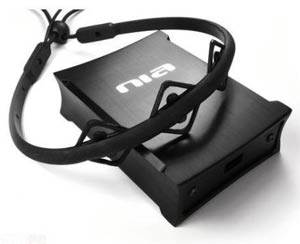
![]() For such a technologically advanced device, the NIA sure doesn't look especially impressive. The NIA only has two pieces, the headband and the control unit. The headband consists of a long piece of molded rubber with a channel through the center for a wire to pass through. A short length of cord is attached to either end of the rubber headband and a plastic adjustable locking nut holds the headband in a circular shape. The wire feeds into the headband from the right side and connects to the three diamond-shaped sensors at the front of the headband. The other side of the wire ends in a 3-pin plug that connects to the front of the NIA control unit. The headband wire is about 3 feet long which gives you plenty of slack to work with. As you can see in the picture above, the headband is made from a single piece of molded rubber. It isn't painted and the edges created by the mold haven't even been shaved off. When you first take it out of the box, it even has a bit of "new car smell". Unfortunately the headband ends up looking somewhat cheap. The upshot is the headband is very flexible and fairly comfortable when worn. The three diamond-shaped sensors are positioned on the headband so they make contact with your forehead. The sensors are manufactured using carbon nanofiber technology. The soft plastic is used as a substrate for the carbon-fibers which are injected into it during manufacturing. Each of the three sensors are connected to the wire that runs through the headband. The raw data from the sensors is collected by the NIA control unit. Unlike the headband, the control unit looks very nice. The unit is shielded in a brushed aluminum case that's been anodized black with the letters "nia" painted on the top in white. While the headband connects to the front of the unit, the rear of the unit features a standard B-type USB 2.0 port. The NIA uses USB for all data transmission and also for power, there is no separate AC adapter to clutter your desk. The NIA sits on four non-slip rubber feet and is no bigger than two older iPods stacked on top of each other. The overall build quality of the NIA is mixed. While the NIA control unit has excellent build quality and looks very nice, the rubber headband looks and feels somewhat cheap. Unfortunately, we discovered after two short weeks that the headband's build quality is quite low since one of the sensors became partially detached. While this didn't effect functionality at all, it does make us worry about how long the unit will last. Setup Setting up the NIA is a very simple procedure. Simply connect the headband to the control unit and the control unit to your computer with a USB cable (one is included). The NIA comes with a driver CD with the necessary software. The actual software is fairly small, consisting of only an EXE, three DLLs and some tutorial videos. Installation is a breeze and you'll be installed and running in no time. While the NIA software is small and "lite", it is not simple. In fact it is quite complex and very powerful as you'll see on the next page. |
| Software & Configuration |
![]() The NIA configuration software is packed with numerous features and options which render it quite powerful, but then again, the NIA is a complex device. The configuration utility is relatively well laid out. The window is divided into a main view window that occupies the right and center of the screen and a persistent tab bar on the left. The tab bar allows instant navigation to any of the utility's central functions. There are five tabs in total and each tab leads to a new set of options to be displayed in the main view window. Hidden within the many layers of the NIA utility are screen after screen of options and most of them will require some explanation, especially since the NIA will be the average user's first experience with a BCI. Thankfully, the NIA's product manual is well written and covers most aspects of the configuration utility. The configuration utility itself also has built-in self documentation in the form of a Tutorial section. The tutorials are generally presented in text but the headband section is presented as a video. When the NIA configuration utility is first started, it automatically launches into the calibration screen. Calibration is the first step in using the NIA and should be performed before each and every session. Calibration helps ensure signal amplification, dynamic range and signal-to-noise ratio are set at the optimal levels. Calibration takes less than a minute and involves staring at a small animation of a gyroscope for about 30 seconds while relaxing the muscles of your face. No explanation is given as to why we must look at a gyroscope but we assume it is just something for us to look at so our retina's won't wander and throw off the calibration process. The calibration can be tested once it is complete. Clicking the 'Test Calibration' button brings up a set of graphics that display the muscle and glance sensor data in real-time. The "Test Calibration" screen doesn't display the Alpha and Beta brain wave sensor data. This can be viewed in the "Brainfingers" screen. A Brainfinger is simply a frequency range that can be detected by the NIA and bound to a key command. The Brainfingers screen displays the real-time status of all brainfingers (3 Alpha, 3 Beta) as well as the glance and muscle data. The glance sensor data represents the amplitude of eye movement independent of eye position while the muscle sensor data represents muscle tension as well as holistic excitation levels. The Brainfingers screen provides real-time feedback on the user's biosignals which is intended to allow the user to practice relaxation. Additional practice can be found in the Practice screen, in the form of a Pong game. The Pong game is intended to allow to user to practice controlling the muscle signal. There are three levels of difficulty and the player's paddle is controlled by the level of muscle tension. When the face muscles are completely relaxed, the paddle is at the bottom of the screen. Flexing a muscle will cause the paddle to move upward. The speed and velocity of the paddle depends on the excitation levels of your muscles. This simple Pong game will likely be the first taste of what it's like to game with the NIA and we'd describe the experience as "hard". The opponent AI isn't exactly difficult, nor are the game rules complex, but you'll likely find that getting your own paddle to the correct position to return the ball is a lot harder than it sounds on the first attempts. Earlier versions of the NIA software also included other simple practice games but the latest version as of this writing (v1.0.0.3) only includes Pong. This is probably for the best since the practice games are quite contrived and actual game-play in a "real" game is much more interesting. The real meat of the configuration utility is accessed from the 'Game Play' tab. From here, you are presented with two options; select a profile or enter the Profile Wizard. Choosing 'Select Profile' will bring up a screen with all of the currently saved profiles. Choosing a profile will display real-time graphs of all of the sensors required by the profile. The game the profile is written for can also be launched from there. Individual profiles can be created, edited and deleted from the Profile Wizard. Each profile can be linked to a specific game but all profiles can be used in any game. This is where things get a little complex. Every sensor the NIA is able to detect and monitor can be configured as either a "switch event" or a "joystick". A switch event is an all-or-nothing proposition, either the signal goes above the trigger line or it doesn't. A joystick is similar except instead of a single trigger line, a joystick has many trigger zones. For example, it is possible to set the muscle sensor as a joystick and divide it into 4 trigger zones. Each zone can be freely resized within the sensor's total range. The bottom zone can be set to do nothing and counts as the rest position while each of the upper three zones can be bound to any mouse button or keyboard key. A switch is in effect a simple trigger with only one zone that covers the top half of the sensor range. All triggers, be them lines or zones, can be configured with additional properties. For instance, it is possible to set a delay on a trigger so it won't activate unless the sensor remains in the zone for some period of time. Instead of a single keystroke or mouse button press, it is also possible to set repeating keystrokes or key hold conditions. Additional activation conditions can be added to triggers to link them to the state of other triggers, among other things. The Profile Wizard is very powerful. However, it isn't especially well documented and the various options and combinations may require some experimentation to figure out. The NIA also comes pre-loaded with several ready-made profiles which work fairly well, especially when just starting out. However, creating your own profiles to match your gameplay style and tastes really allows you to get the most out of the NIA and the Profile Wizard provides enough option combinations to achieve just about anything you can think of. |
| Conclusion | ||||
![]() The OCZ NIA is a very unique input device and possibly the first true brain-computer interface to hit the retail market. However, the NIA isn't a replacement for traditional input methods, it is merely a powerful supplement. Whether your input device of choice is a standard keyboard and mouse or a gamepad / joystick, the NIA will give you a lot of extra flexibility. Not only will you be able to control numerous commands with your mind, face muscles and eyes, you'll also instantly benefit from the response time advantage your head has over your limbs. This could mean a 100ms boost in response time, which can make all the difference in a tense game. While we spent most of our time testing the NIA with fast FPS games where response time is of the utmost importance, it can be just as useful in other genres. In a RTS, you could use the NIA to bind build orders and unit commands. With a RPG, you can finally launch magical abilities the way they were meant to be cast, with your mind. The NIA is certainly not limited to games either. The highly versatile configuration utility and driver software allow the NIA to be used in any environment, including the Windows desktop. The NIA could become the center of your experience or it could just as easily act like a third hand, it's up to you. Unfortunately, the NIA isn't without caveats. Before you can enjoy the unique gaming experience provided by the NIA, you'll need to slog through day upon day of training to build up your skill with the device. Thankfully, training often involves nothing more than playing games. This is definitely the hardest game controller to master on any platform. The need to calibrate before each session is also a bit of a drag. However, if you persist, you'll be rewarded with a truly unique experience. How many people can claim they won a game of Pong without using their hands or feet? All of the R&D and technology that went into the NIA does not come cheap. A retail OCZ NIA currently costs $147.99. While this isn't prohibitively expensive, it is definitely high-end for an input device. You get your money's worth for the most part and our only complaint is the poor build quality of the rubber headband. However, if you want to experience a brain-computer interface, the NIA is probably your only shot, at least for the time being. In the end, whether or not the unique experience provided by the NIA is worth the price of admission is up to the individual consumer. Unfortunately the cost is two fold, both the initial monetary investment and the time investment necessary to learn the device. The decision is further complicated by the fact the NIA doesn't truly replace the keyboard and mouse, it only supplements it, like a gamepad or joystick. The NIA also won't instantly make you a better gamer, but with practice and careful profile setup, it can breath new life into your favorite games and even give you a competitive edge. The NIA is an excellent product that delivers on all advertised features but may be plagued by a small audience. OCZ could be on to something with gaming centric BCIs since the end result is a truly immersive and rewarding gaming experience, but how many gamers will be willing to put in the time, effort and money to find out?
|